Record and match payments
Payments represent received money. Matching connects that money to a sale. Recording a payment and allocating it are separate tasks.
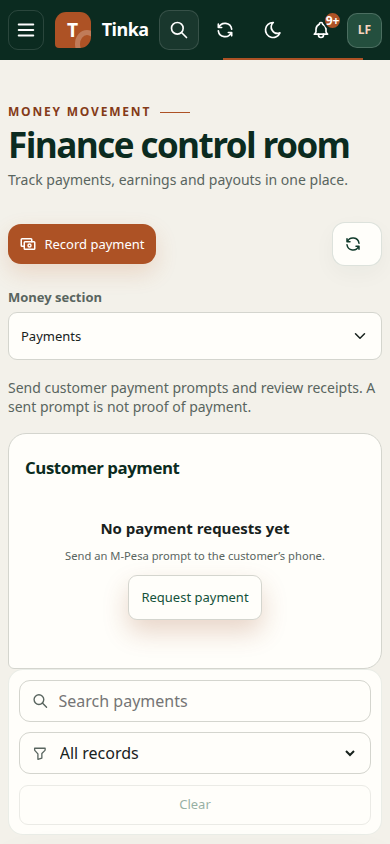
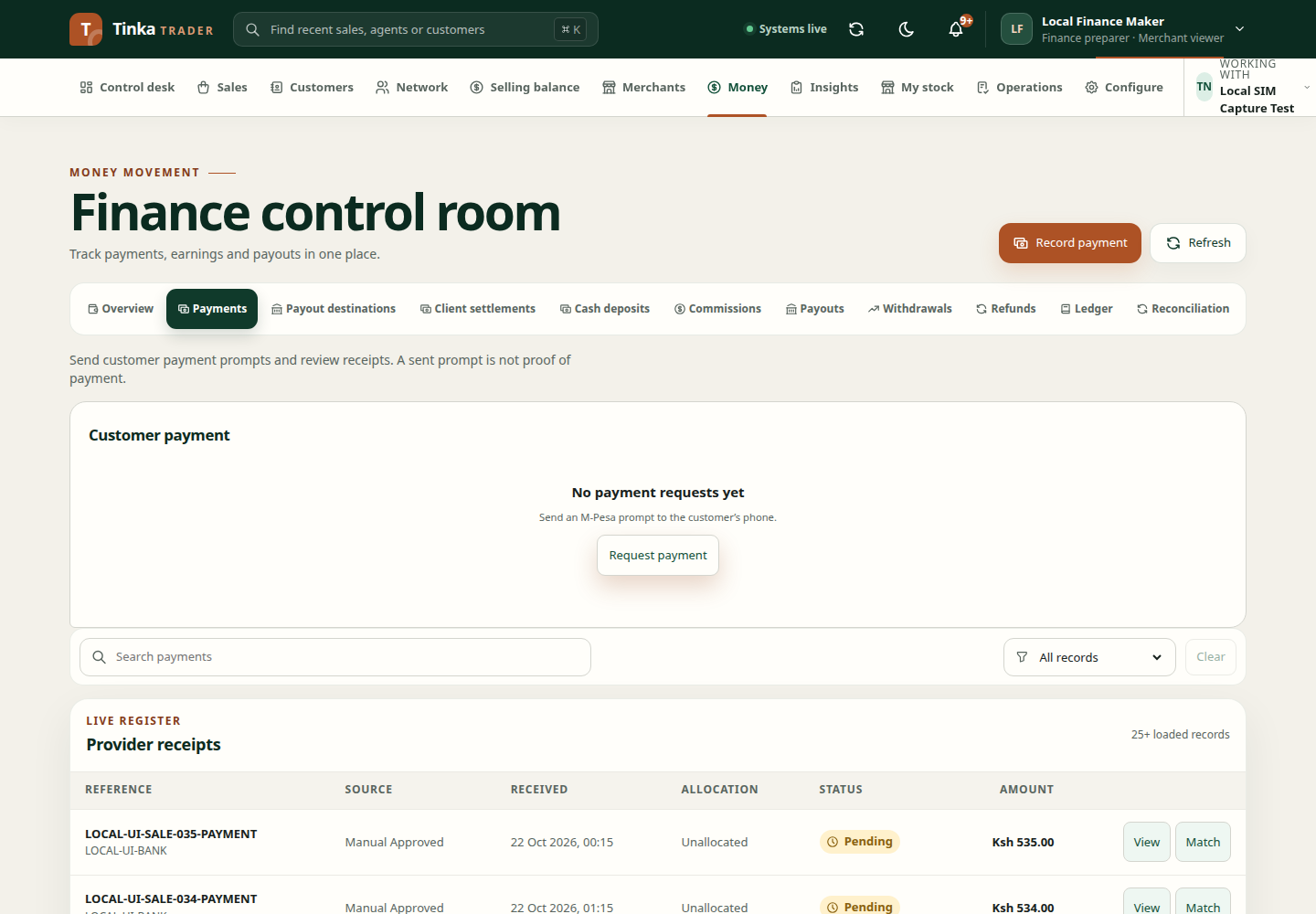
Record a payment
- Open Money → Payments and select Record payment.
- Choose Source. A file source requires source payment evidence. A manually approved source is restricted to authorised finance roles.
- Set Occurred at, Merchant account reference and Provider reference from the actual receipt.
- Enter Amount (KES). Use the receipt amount, with no more than two decimal places.
- Provide Raw provider status, any relevant Payer reference, and the Authorization reason required by the chosen source.
- Attach evidence where requested and wait for clean upload status.
- Review the merchant, reference and amount, then submit once.
Do not use a bank or mobile-money reference copied from an unrelated transaction. A reference is used to connect records and support duplicate detection and investigation.
Match to a sale
Find the payment and select Match. Choose Sale, optionally Sale line, and the amount to allocate. Explain the Matching reason and evidence used to identify the sale.
The allocation must not exceed the payment's remaining balance. For example, a KES 1,000 receipt with KES 600 already allocated has KES 400 remaining; a KES 500 allocation cannot fit that balance. This example illustrates arithmetic, not a business approval policy.
Review both references before submitting. After success, inspect the payment's allocation state and the sale's payment information.
Resolve mismatches
If the sale cannot be found, check merchant, identifier and read access. If the receipt amount or narration does not match the sale, investigate the difference instead of allocating to the closest-looking record.
If a request times out, refresh the payment list and search the provider reference before recording again. Use cases for an unresolved issue and reconciliation when external statements need comparison.
A matched receipt is not a payout to an agent. Use withdrawals and payouts for outgoing money.
Request an M-Pesa collection
A collection request asks the provider to collect money. It is different from recording a receipt that already exists. You need payment-collection permission; viewing the resulting request needs payment-read access.
For an existing sale, open Sales → sale detail and the collection action. Confirm the sale and payer's mobile number. The server determines the amount and collection account from the sale.
For a standalone request, open Money → Payments and the collection section. Select an active collection integration, supply the requested account reference, amount, and payer mobile number, then review and submit once. Confirm the merchant and payment provider environment before requesting a real payment.
Open the collection request to inspect its outcome. An accepted request or phone prompt is not confirmation of a successful payment. If the outcome is unknown, investigate through reconciliation before requesting another charge.
An identical retry in the same browser tab reuses the previous request identity; a known request is reopened. This safeguard does not cover retries from a different browser or a changed request. After a timeout, inspect the existing request before starting again elsewhere.