Sales agent: make your first sale
Follow one sale from sign-in to its recorded outcome. Use your own merchant, customer and product records; the examples here are not sale data.
Before opening the form
Sign in with your own account and check Working with in the top bar. You need an active selling assignment for the campaign and product. If you are selling a SIM or device, first open My stock and confirm its exact serial is Available. My stock explains the receipt and other states.
Screen 1 — Capture sale
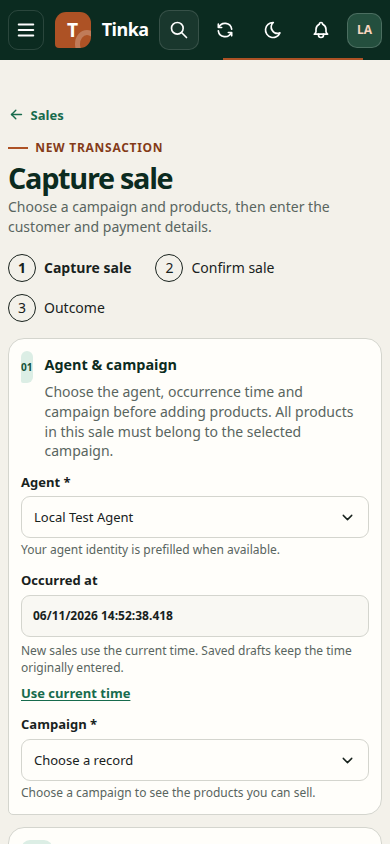
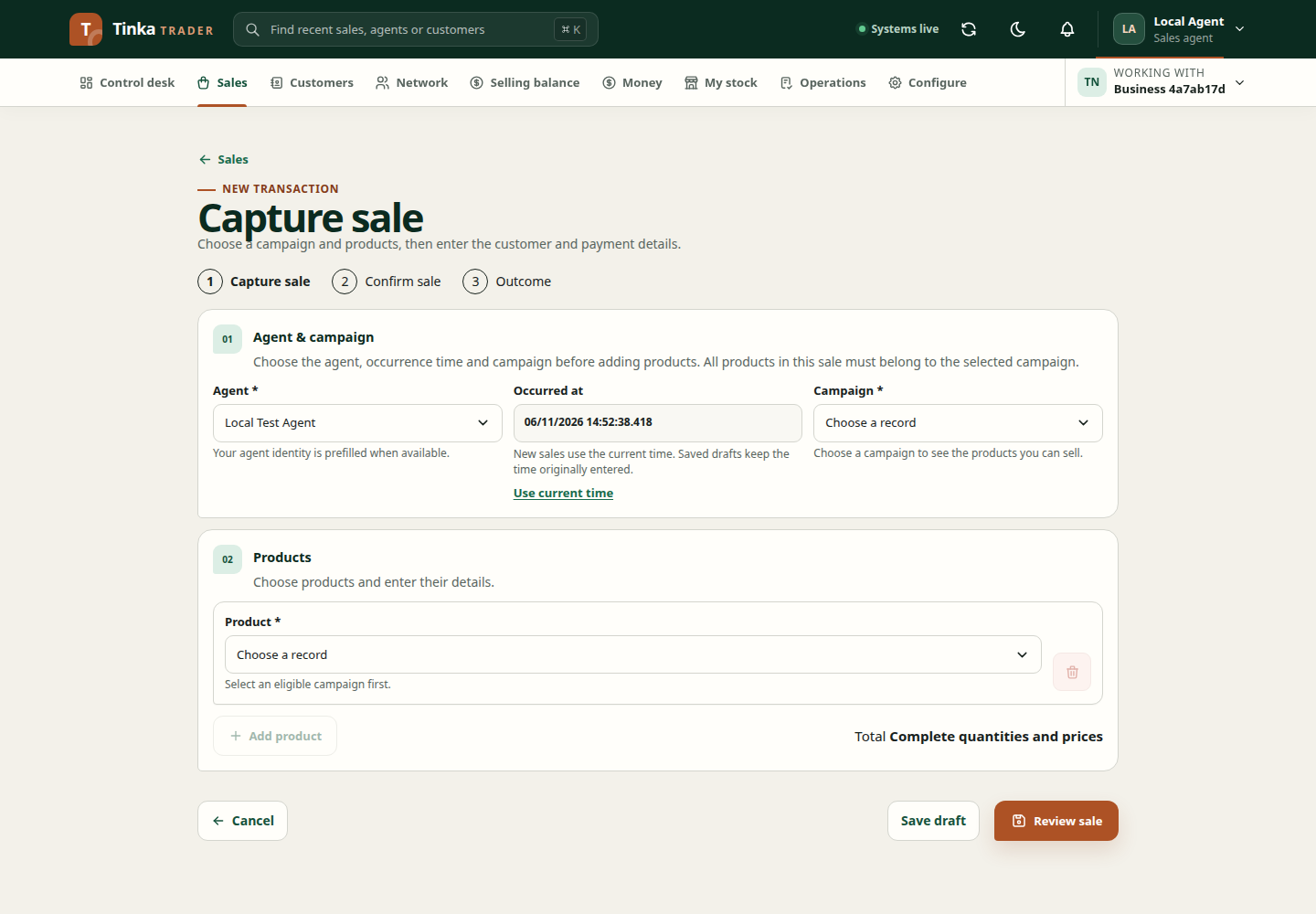
Open Sales → Capture sale. The form is arranged as Agent & campaign, Products, Sale details, then Payment. Your agent name and current time are filled when Trader can identify a unique matching agent. Do not select a colleague if your name is missing; ask your administrator to check your agent profile and assignment.
| What you see | What to do | Check before continuing |
|---|---|---|
| Agent and Occurred at | Confirm your name and the sale time. Use Use current time only if needed. | Both describe this transaction, not another agent's work. |
| Campaign | Choose the campaign for this product. It may already be selected if only one is available. | Product choices belong to that campaign. |
| Product card | Choose the product. Fill its required quantity, price and product details. | Use the actual configured price and recipient. Requirements vary by product rule. |
| SIM serial or Device serial | Search and select the exact item handed to the customer. | Only eligible stock assigned to your custody should be offered. |
| Done | Collapse a complete product card. Use Edit if you need to correct it. | Total includes every product card. |
For airtime or data, enter the recipient number when that product's form asks for it. For a SIM, enter the registered line number where its product rule asks for it. For a sponsored SIM package, the card displays its fixed line price and included airtime. Enter the actual registered SIM number; do not create another airtime sale for that included amount. Your selected wallet pays the line price, while the organisation funds the included airtime. Check the separate airtime outcome and later SIM commission verification.
Use Add product only for another product in the same campaign. A serialized item represents one physical unit; add another card for another serial. If a required field or stock picker is unavailable, correct the cause before saving.
Screen 2 — Sale details and payment
Sale details can be collapsed. Expand it to check the generated Client sale reference and selected Customer. Trader may fill an eligible walk-in customer automatically. Choose the actual customer or use Register customer if the walk-in record is unsuitable. Keep the generated reference for recovery after a lost connection.
Payment appears below sale details. Choose a method allowed for the selected products. Enter an existing payment reference only if the customer has already paid by that method. Choosing M-Pesa in the form does not send a phone prompt.
Select Review sale. Use Save draft only when you intend to stop and finish later.
Screen 3 — Confirm the saved sale
Trader saves the sale and opens its detail page. Review the confirmation shown there: customer, agent, campaign, products, serial or recipient, total and payment method. Select Confirm sale when offered. If required proof is missing, attach it on the sale detail page first; the page tells you what is needed.
For a selling-balance sale, Pay for this sale displays a server quote. Check selling balance debit, discount, available balance and any M-Pesa amount separately from the sale total. Select Review payment, complete the security check if requested, then review and confirm the amount. Signing in again does not submit payment automatically.
For customer M-Pesa, use Request M-Pesa payment on the sale detail page, confirm the customer's agreement and phone number, and check the request status. A sent prompt is not a completed payment.
Screen 4 — Check the outcome
Stay on the sale detail page and read Processing status and Payment requests. Sale acceptance, payment, delivery and qualification can finish at different times. A recorded sale is not necessarily paid, delivered or commission-qualified.
| If you see | Next action |
|---|---|
| Draft | Complete missing proof or confirm the saved sale. |
| Payment pending | Check the existing request before sending another. |
| Reserved selling balance | Funds are held until the configured completion condition. |
| Queued on this device | Reconnect and follow offline outbox recovery. |
| Missing or wrong serial | Stop. Ask Operations to inspect your stock receipt; do not select someone else's item. |
For detailed evidence and delivery actions, read sale progress. For a failed save, search the generated sale reference before starting a second sale.