Invited agent: complete onboarding
Use the personal link your team lead sent by SMS or email. Use the same email address the team lead entered in the invitation.
Screen 1 — Open the invitation
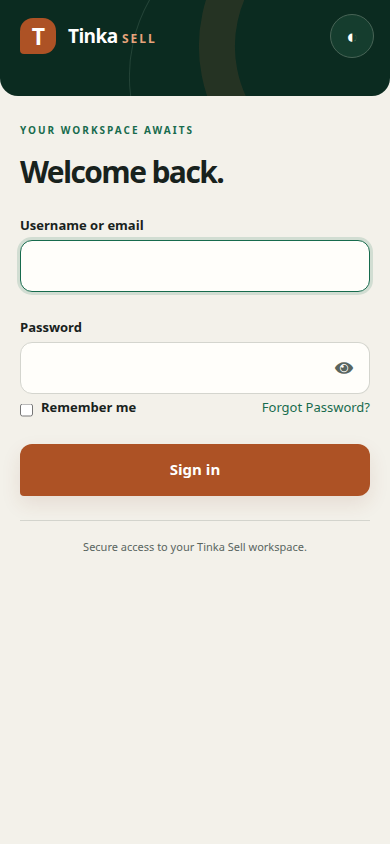
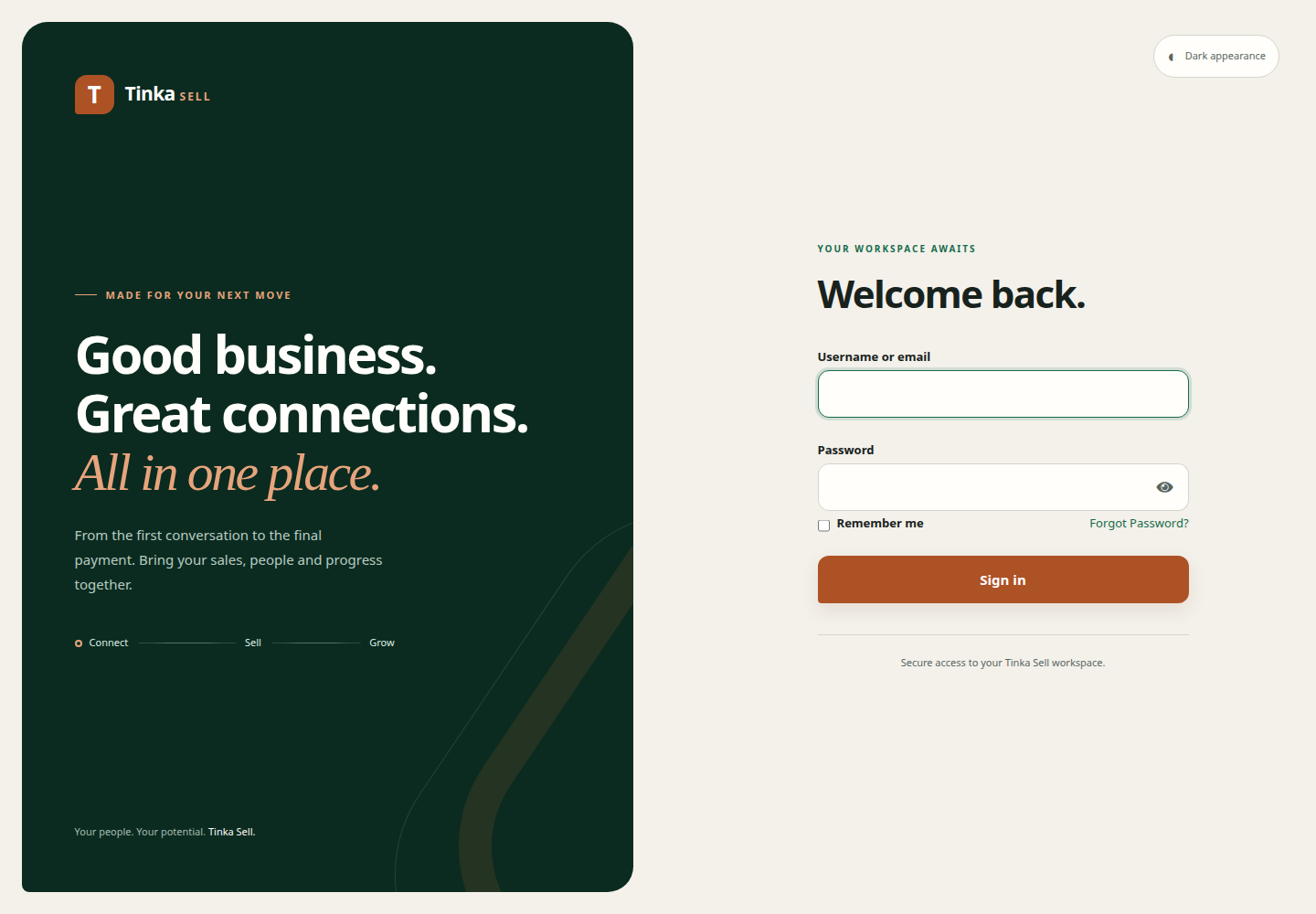
Open the complete link in the message. Trader takes you to sign-in before showing the onboarding form. Keep the link private.
If you already have an identity-provider account with the invited email, sign in. If you do not, select Register on the sign-in page and create an account using that email. Verify the email when prompted, set your password and complete any authenticator setup the sign-in page requires. Return to the invitation link after registration or verification.
Screen 2 — Complete your agent profile
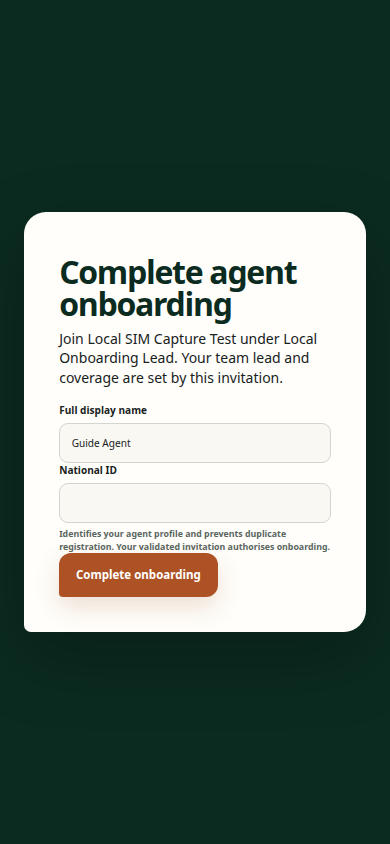
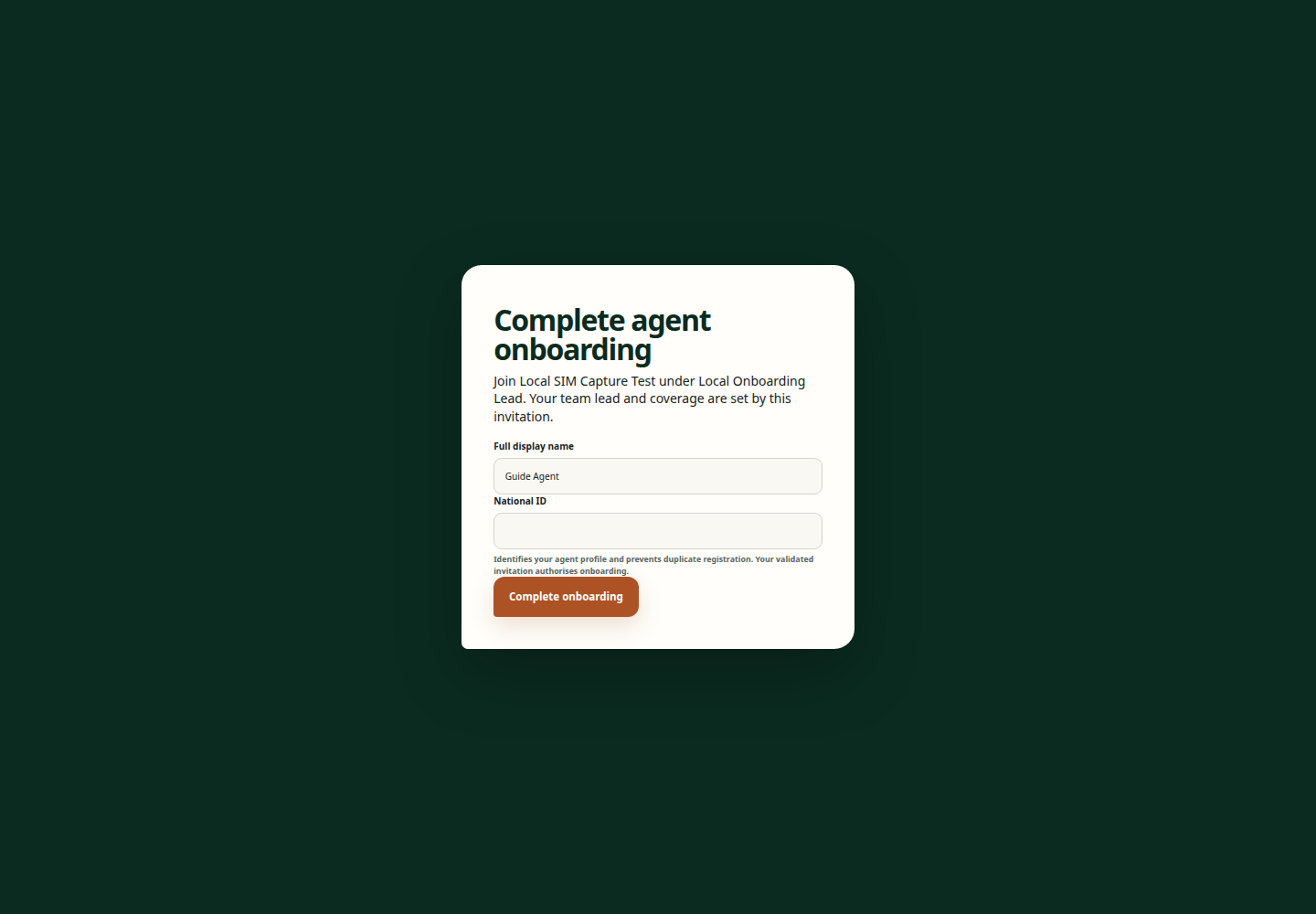
Trader shows the merchant and inviting team lead. Check that they are correct.
Confirm or edit Full display name, enter your National ID, then select Complete onboarding. The National ID accepts 5–32 letters or digits. The team lead already supplied your email and mobile; you do not enter them again here.
The Onboarding complete screen confirms your agent profile and team lead are active. Select Open workspace. Your campaign coverage and selling access come from the invitation.
Before your first sale
Check Working with and your campaign in Sales → Capture sale. For a SIM or device, the stock holder must confirm the exact serials received before they appear as available for sale. Use an accepted payment method and follow the first sale guide.
If the invitation is expired or cancelled, ask your team lead for a new one. If Trader says the email does not match, sign in with the invited email and finish its verification. If an existing profile or National ID causes a conflict, ask an administrator to review that record; do not create another identity.
Sign in — screen example