Record a sale
Capture the transaction once, with enough detail for the configured checks to evaluate it correctly. New to this task? Follow the screen-by-screen sales agent walkthrough first.
Before you start
You need permission to create sales and access to the required reference records. Confirm the operating merchant, customer, eligible agent, campaign and products. Campaign rules determine whether cash, offline capture, serialized stock, application data or particular evidence is allowed or required.
Enter the sale
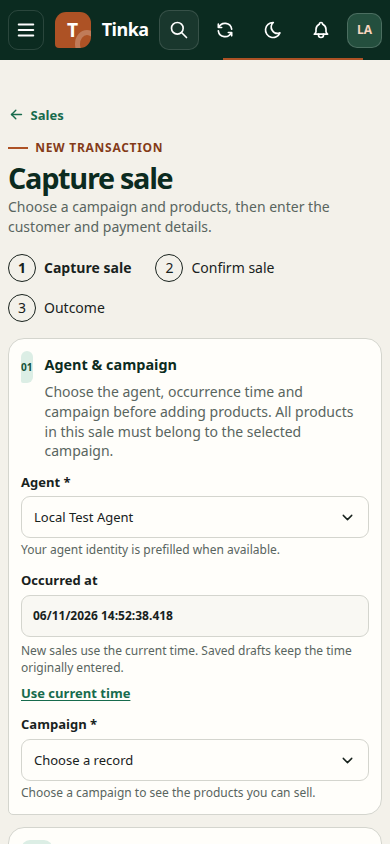
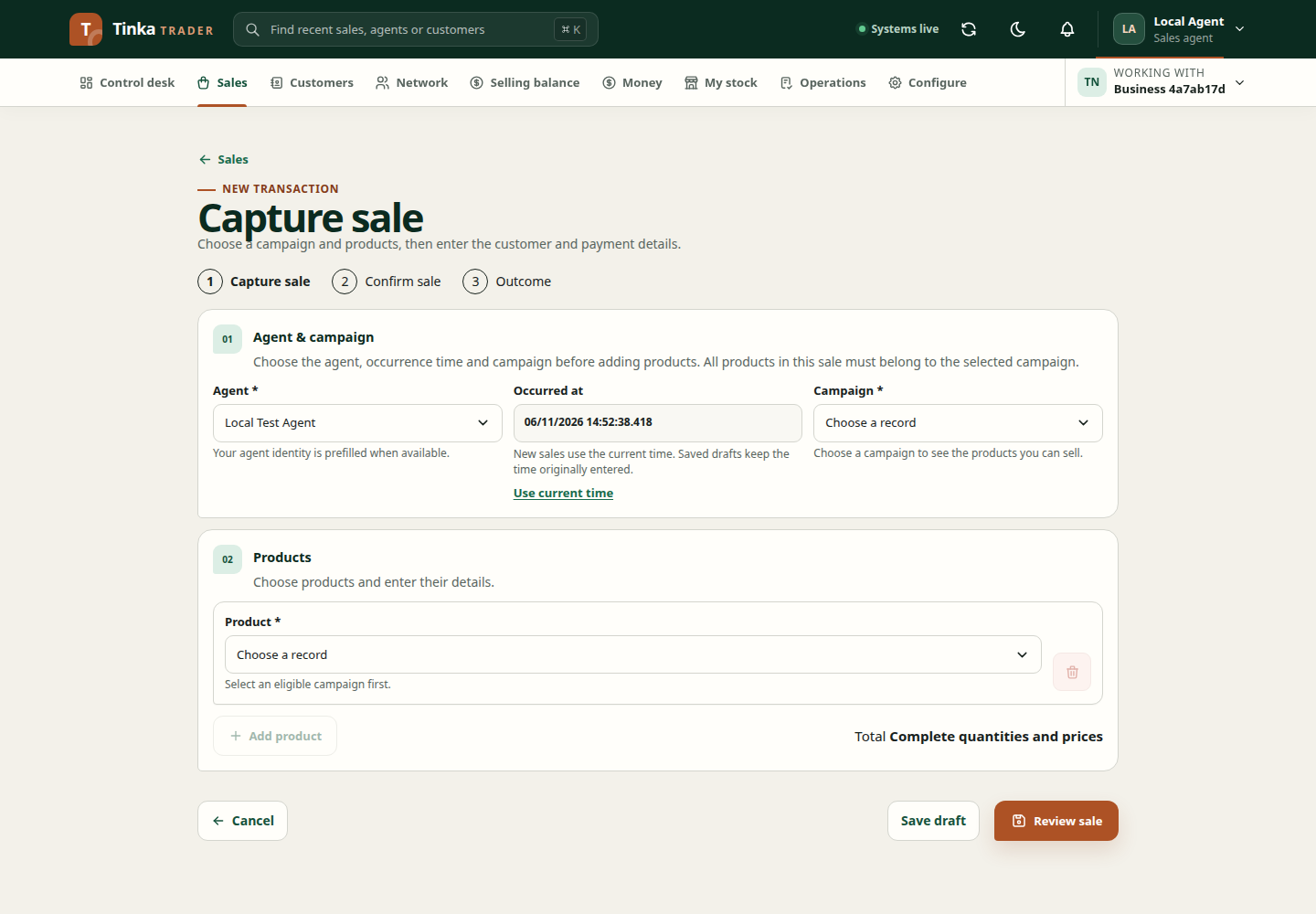
- Open Sales → Capture sale. Check the prefilled Agent and Occurred at fields, then choose Campaign. Trader fills the agent only when your account matches one eligible agent record; do not select someone else to work around a missing match.
- Choose a Product. Enter a positive Quantity and Unit price (KES) as the form allows. Airtime, SIM lines and the single-serial stock picker keep quantity read-only at one; add another line for another unit. Other products retain their supported quantities, including up to six decimal places. Use up to two decimal places for money. If a restored single-unit draft has an invalid quantity, use Reset quantity to 1; its other details are kept.
- Fill any product-specific fields. If serialized stock is required, select the exact item acknowledged in your My stock view. Do not invent serial identifiers or choose stock belonging to another agent, location or merchant.
- Select Done to collapse a complete product card. Use Edit to correct it. Use Add product for additional lines in the same campaign, and remove accidental lines before continuing.
- Expand Sale details to check the generated Client sale reference, customer and any territory field. An eligible walk-in customer may be prefilled; change it or use Register customer when needed. Keep the generated reference for recovery. Occurred at uses your device's local time.
- Review the total and each product line. Check quantity and price rather than adjusting another field to force a preferred total.
Payment and product details
At the bottom of the form, choose the appropriate Payment method and enter an existing Payment reference only when applicable. A payment method on a sale does not by itself prove a payment was received or matched.
Some products require Product application data (JSON). Obtain the required fields from your authorised product instructions; do not paste arbitrary data or credentials. Invalid JSON or missing product requirements can block capture.
Provide required field values, customer acknowledgement and location information during capture. Required files and optional supporting documents are attached after saving the draft, so they belong to the correct sale. Use device location requests browser permission; if denied or unavailable, follow the form's supported correction controls. See evidence.
Sponsored SIM packages
When a product's active offer includes airtime, its card shows the fixed line price and included airtime amount. For example, a configured KES 1 line with KES 50 airtime keeps that price read-only. Select the exact serial and enter the registered SIM phone number. The included airtime belongs to the same sale; do not add another airtime sale for it.
The displayed payment method pays the line price from your selling balance or commission wallet where allowed. The organisation funds the included airtime separately. It does not debit the agent's wallet for that airtime amount. Check the displayed offer rather than assuming every SIM product has this package.
Airtime delivery and SIM commission qualification have separate outcomes. Successful airtime does not make the commission withdrawable; follow the provider verification and any funding/hold requirements. Customer cash collected outside this flow is not recorded automatically by this package.
Submit and confirm
The main flow is Capture sale → Confirm sale → Outcome. Select Review sale after correcting any highlighted errors. The client first saves a recoverable, idempotent draft, then opens the matching sale detail for explicit confirmation. Save draft remains a separate option that does not start confirmation or payment.
Review the customer, campaign, products, quantities, recipient and payment method before confirming. A selling-balance quote shows the actual debit, discount, debt and available balance; the sale total is not necessarily the wallet debit. A stale wallet security session opens the identity provider's approved 2FA check while keeping the sale and quote. Authentication alone never submits payment: review the amount and confirm again. If the popup cannot be used, a redirect can resume the review, but not submit it. Expired quotes must be refreshed. No transaction PIN is stored or checked in the browser.
Wait for the actual outcome. Accepted, reserved, queued and completed have different meanings. A customer M-Pesa request still requires the customer's consent and confirmed provider evidence; it is not silently sent by capture confirmation. A queued offline sale still needs synchronisation and is not yet a confirmed live sale. Follow the outbox before attempting another capture.
Open the saved sale and use Attach evidence for each required file. Select the configured type of proof and approved document processing purpose, upload the file, then select Record event after scanning succeeds. Required proof must be attached before submission or payment. Saving a draft does not submit it or debit selling balance. Review the completed details, then explicitly confirm the available submission or payment action.
If choices cannot load, use the relevant retry action or ask for missing read access. Do not substitute another customer or agent to get past a loading problem. For offline or uncertain submissions, follow outbox recovery before creating another sale.