Stock, locations and movements
Inventory tracks where stock is and who has custody. A movement, dispatch approval and receipt are separate events. For one complete agent handover, follow the stock maker and stock checker guides.
Create locations and stock
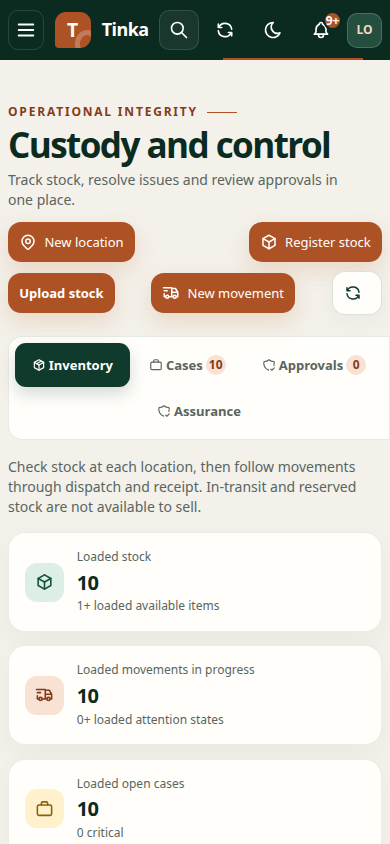
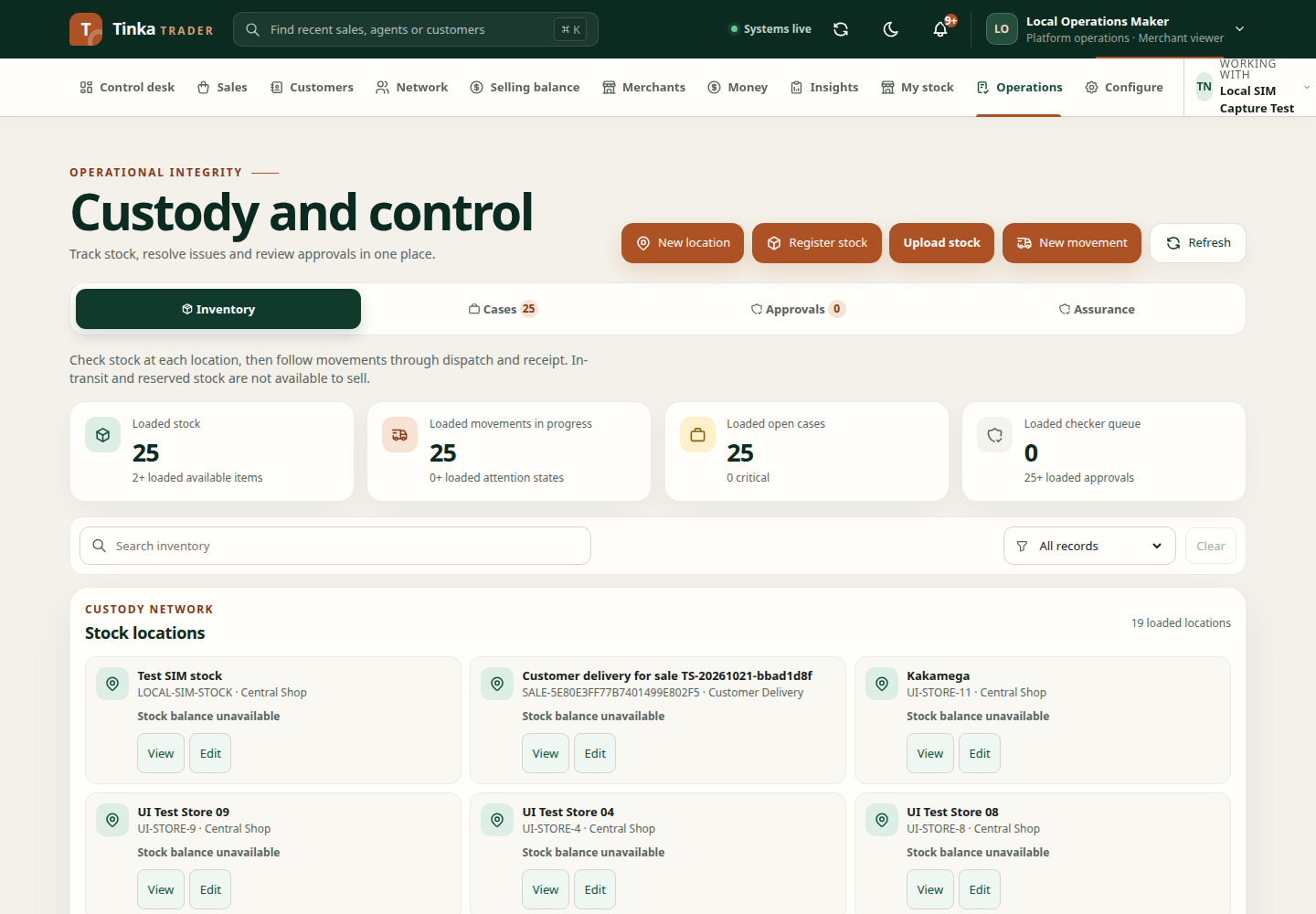
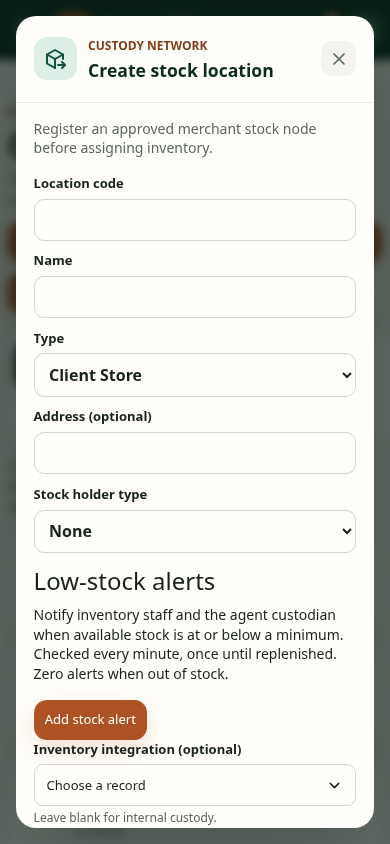
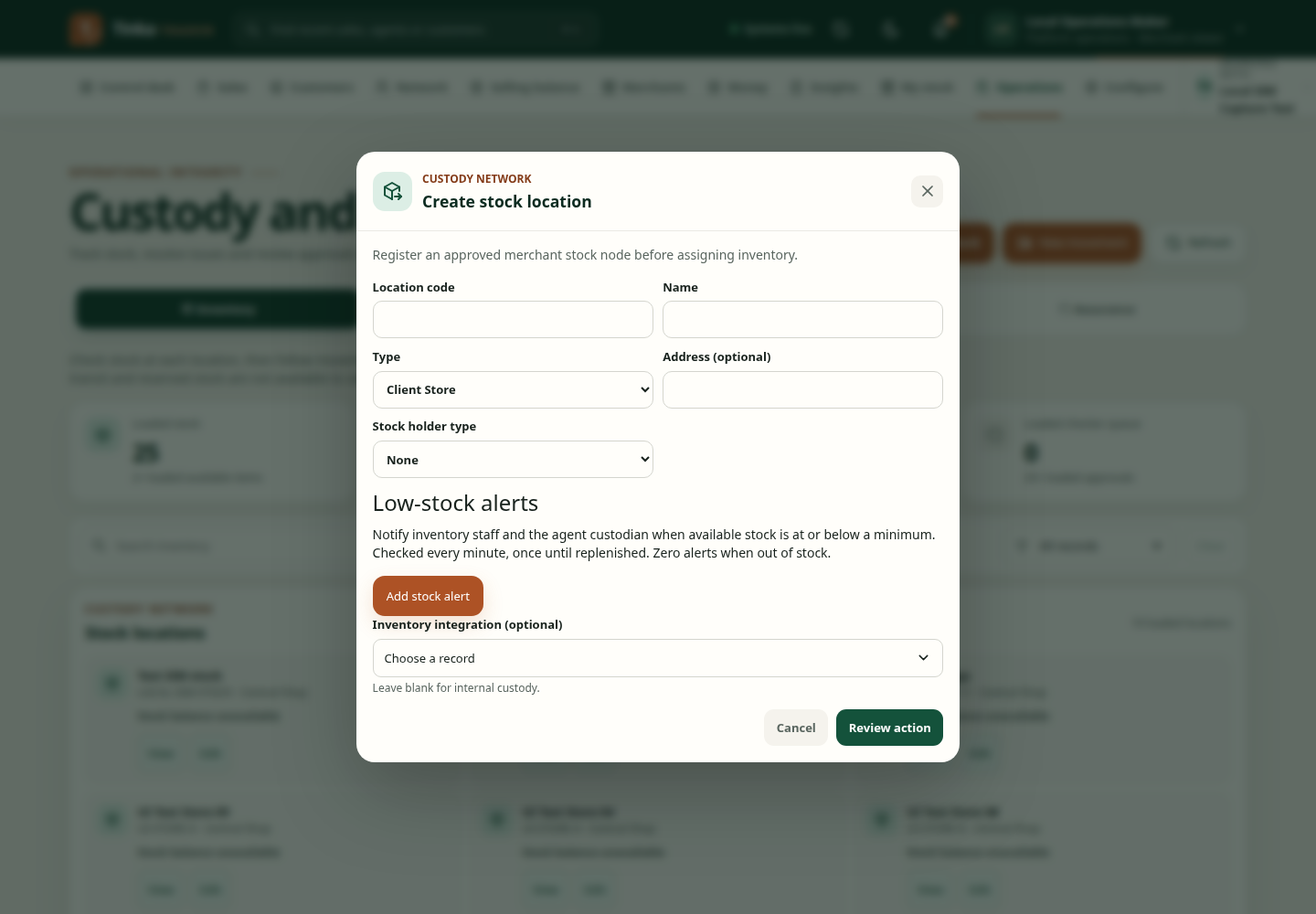
Open Operations → Inventory. Use New location to enter a location code, name, type, and optional address and holder details. Choose the actual business location rather than a temporary placeholder.
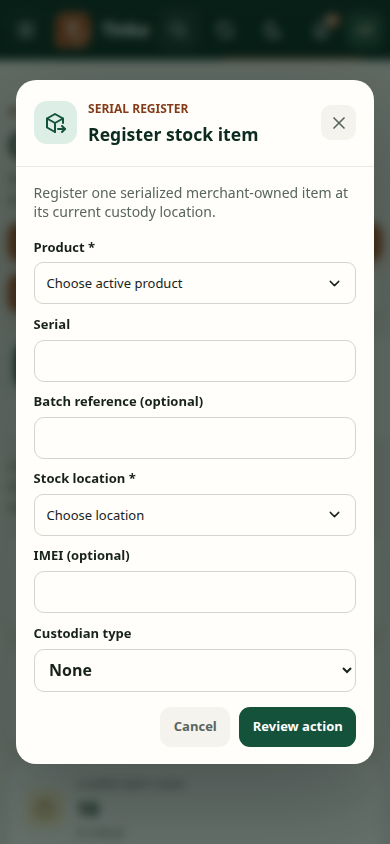
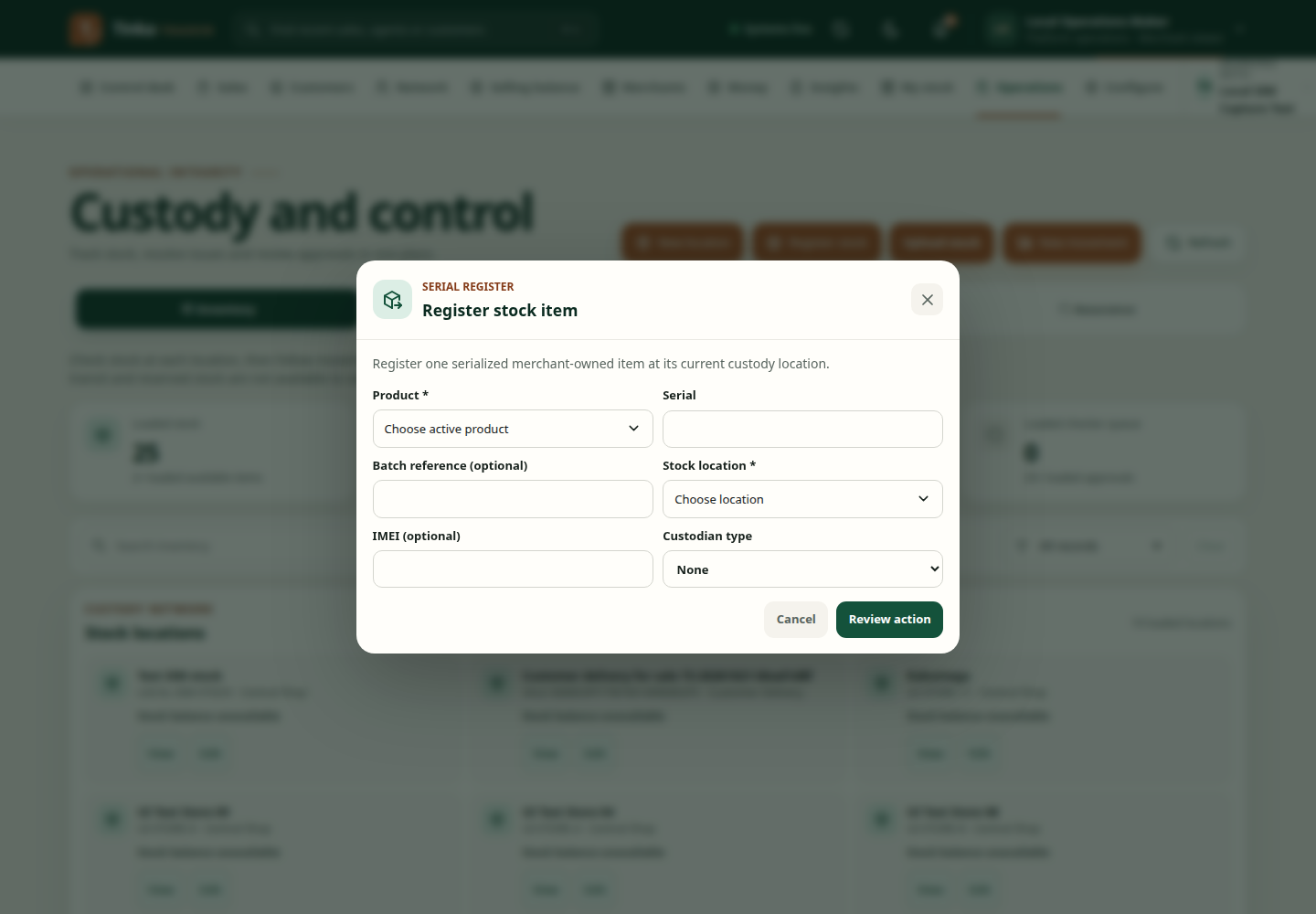
Use Register stock for a serialized item. Select the active product and stock location, enter the actual serial and optional batch reference, and complete optional IMEI or custodian details where applicable. Check serial accuracy before submitting. A stock record should identify the real item, not a planned future purchase.
Upload serialized stock in bulk
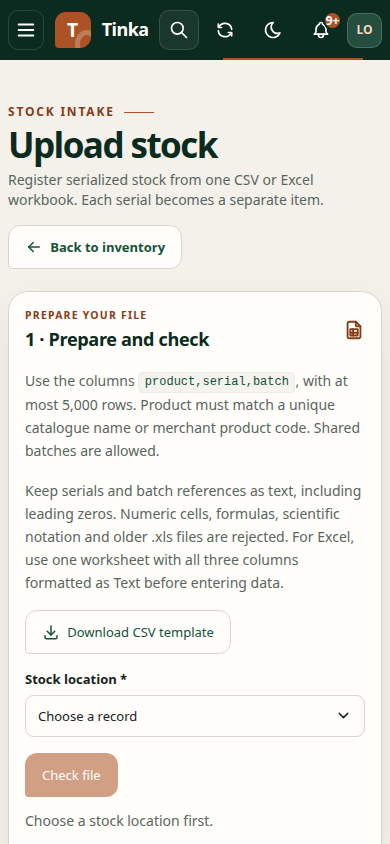
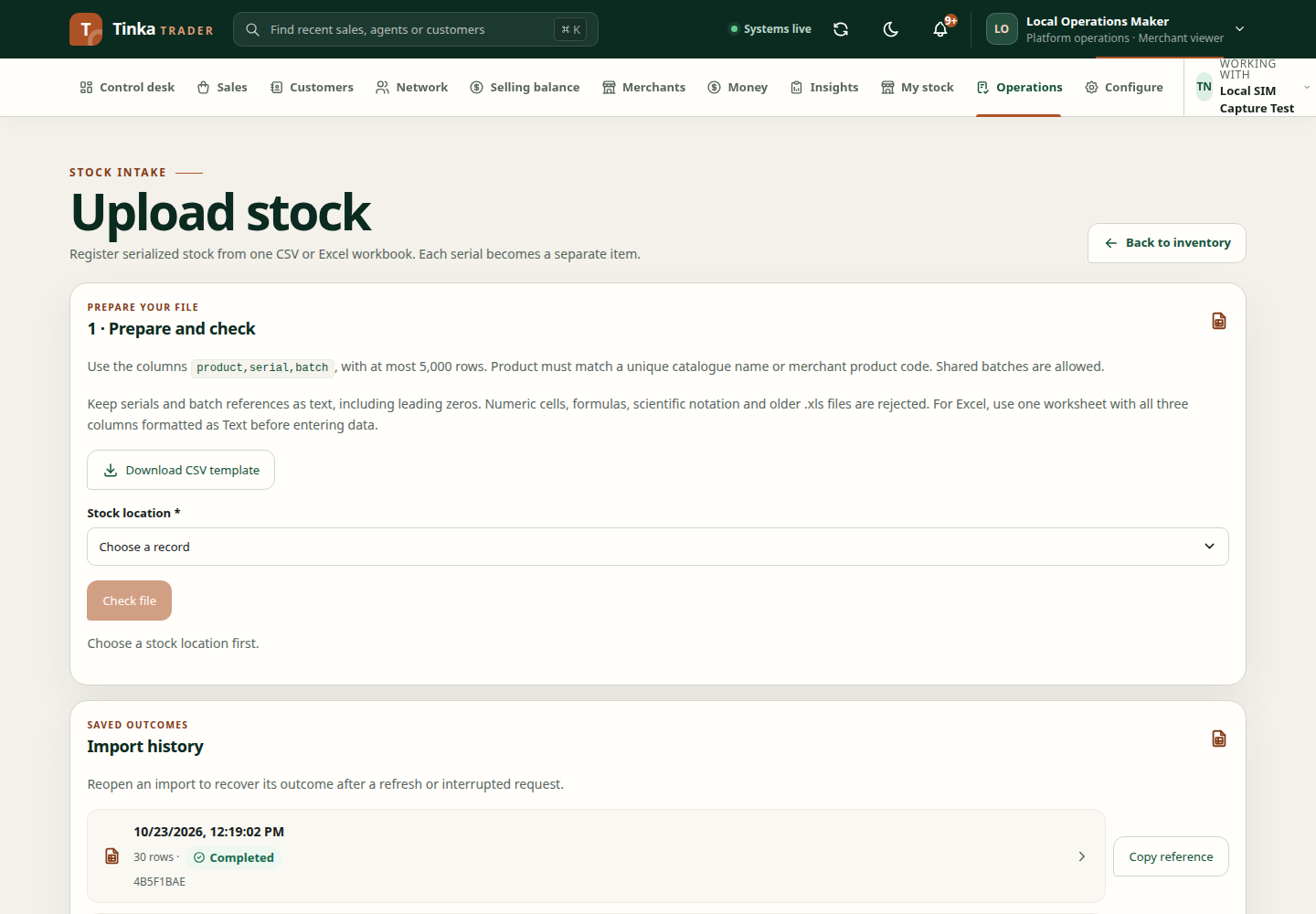
- Open Operations → Inventory → Upload stock and select the receiving stock location.
- Download the CSV template. Supply
product,serialandbatchon every row. Product must match a unique name or merchant product code in the selected merchant's catalogue. Each serial creates a separate item; items can share a batch. - Upload a UTF-8 CSV or
.xlsxworkbook with one worksheet and those three columns. The limit is 5,000 items and 25 MiB per file. Legacy.xls, macros, external links and embedded objects are unsupported. - Keep serials and batches as Text before entering them in Excel. Numeric or formula cells, dates and scientific notation are rejected; changing a rounded ICCID's format cannot recover its original digits. SIM ICCIDs must have 18–22 digits.
- Select Check file and review row numbers, product matches, serials, batches and errors. Checking does not register stock. Correct every error in the original file and upload the corrected file. Use Recheck import when catalogue or stock eligibility changes.
- Select Confirm registration, review the summary, then Register all items. Registration is atomic: either every item registers or none does. The server rechecks permissions, source checksum, location, catalogue eligibility and current serial duplicates at confirmation.
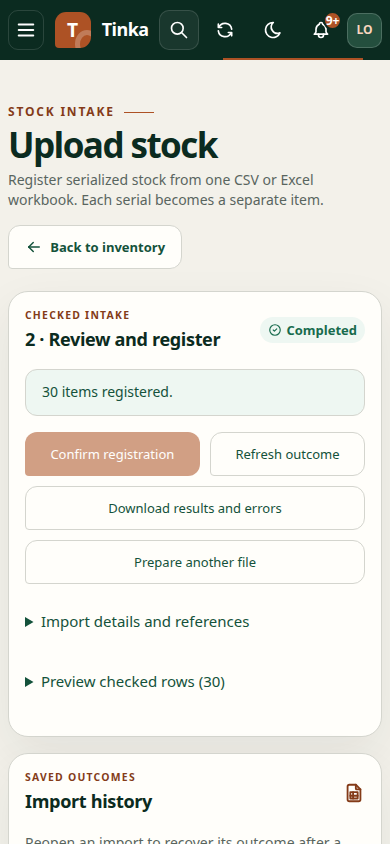
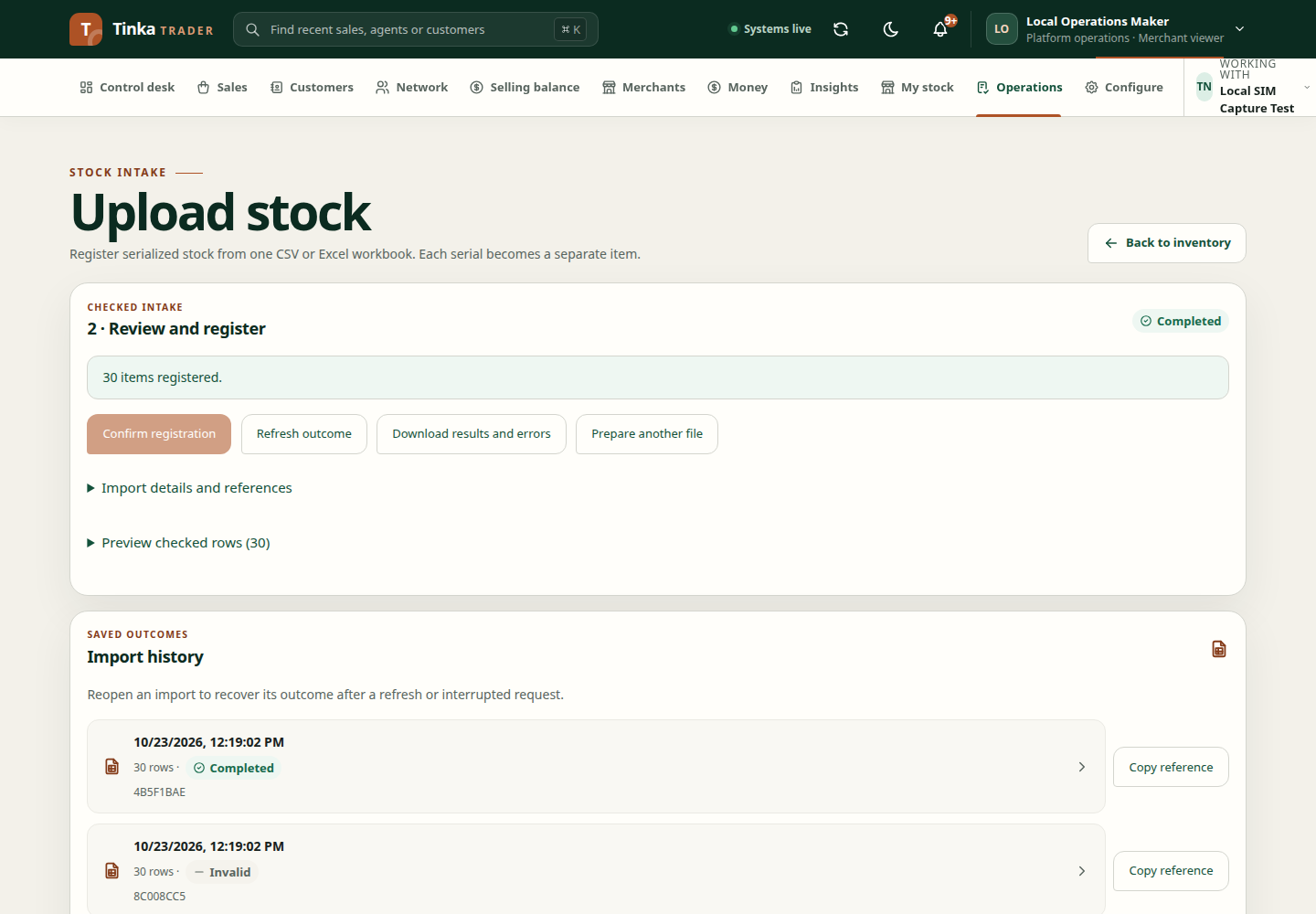
- Review the final registered count and download results or row errors. Batch references appear in Controlled stock on desktop and mobile.
Keep the import URL or reopen Import history after an interrupted request. Refresh the saved outcome before retrying; a completed import returns its original result even with a new retry key. The same file content for the same merchant and location reopens its existing import. Do not move a file to another location to work around duplicate errors.
The workspace requires inventory:read; creating, rechecking and confirming imports require inventory:write. Uploads also need files:write; result downloads need files:read. An administrator must configure an active document processing purpose permitting file.inventory_stock_import for the uploader's role. File ownership is stock_location with the selected location ID, not the operator. Upload integrity verification and a clean scan are required.
Stock intake does not activate SIMs, provide an MSISDN, qualify a sale or allocate commission. Safaricom quality reports remain a separate sales verification workflow.
Move stock
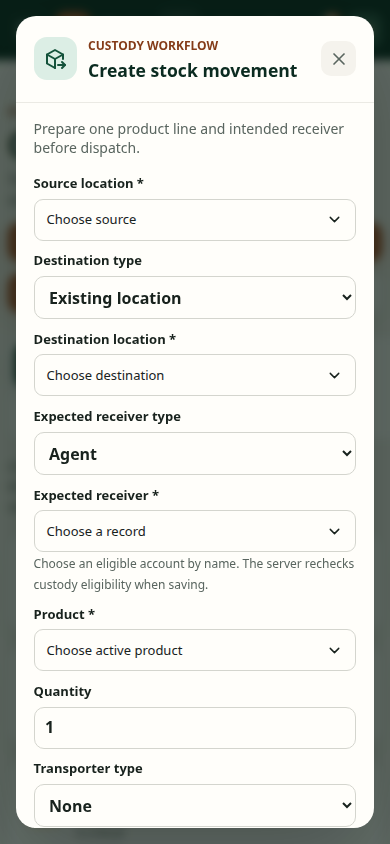
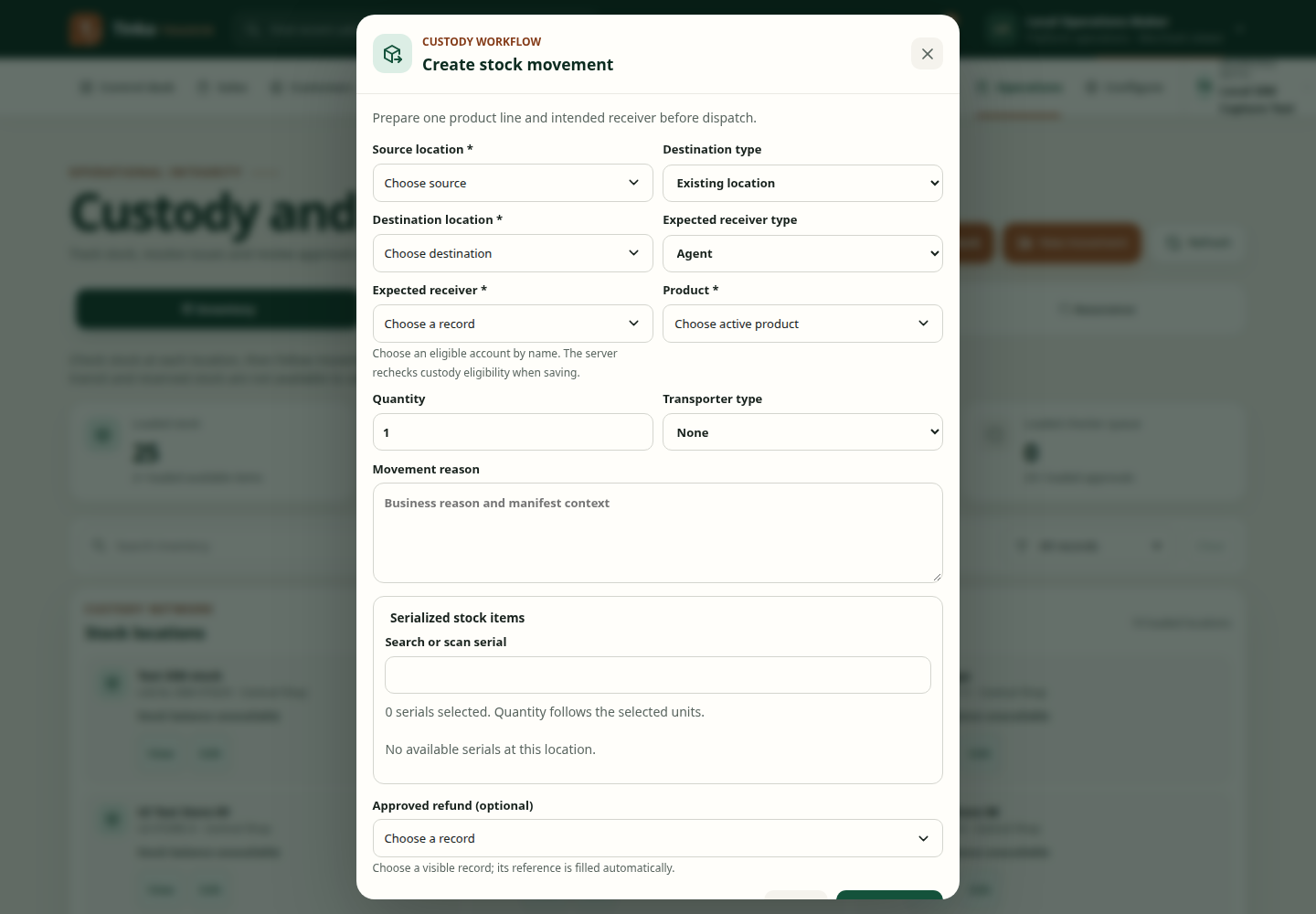
- Select New movement.
- Choose different Source location and Destination location.
- Select Product. For serialized stock, use Search or scan serial under Serialized stock items and choose the exact physical units; Quantity follows that selection. Do not type serial labels into a UUID field.
- Select the destination agent's person-custody location. Check Expected receiver type and select Expected receiver by name; the location's registered holder can supply the receiver details. Enter transporter information only when applicable.
- Explain Movement reason, including the business purpose and manifest context.
- Review and submit the movement.
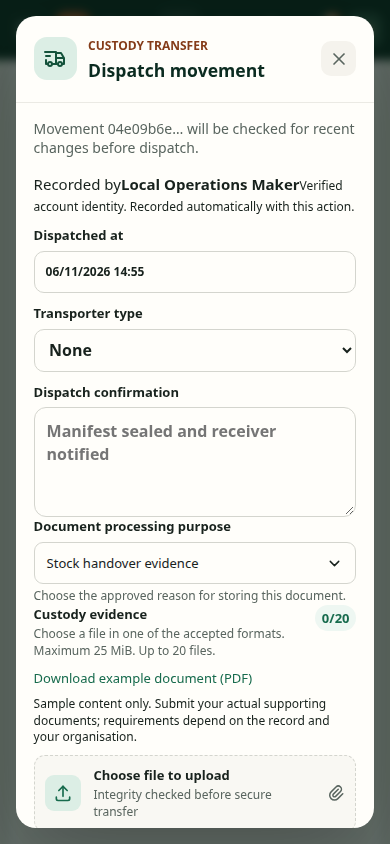
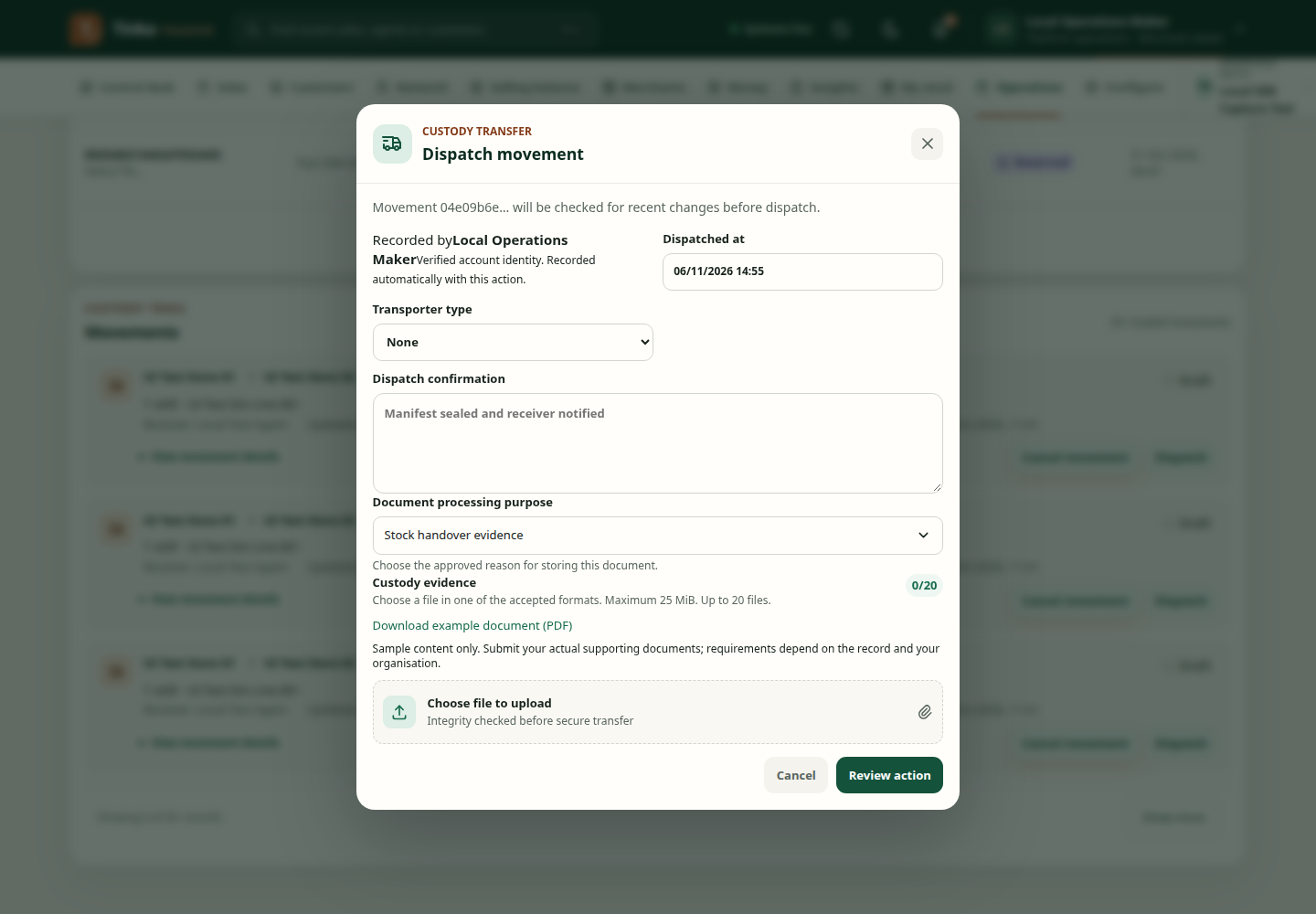
- Use Dispatch only when dispatch actually happens. Confirm the actor identity, then enter the dispatched-at time and dispatch confirmation. Dispatch creates a request for an independent checker; it does not prove receipt.
- After checker approval, confirm the movement reached Dispatched. The receiver then uses Acknowledge or My stock → Movement → Confirm received stock to record the actual custody result.
Report the actual receiving result
Custody event choices include Handed over, Partially received, Received, Discrepancy, Rejected and Lost. Select the real event and provide an occurred-at time and receiving note describing condition, quantity or differences.
Do not select Received if items are missing merely to finish the workflow. Record the discrepancy and open a case when investigation is needed.
Check progress
Review Stock locations, Controlled stock and Movements together. A movement record existing does not mean stock has been dispatched or received. Check status, location, custodian and history before using an item in a sale. The receiving agent checks My stock for Available serials and a receipt link.
If product choices are unavailable, resolve product read access. If an edit reports a changed revision, reload and inspect current custody before retrying.
Use the correct actor identity
Dispatch, receipt and discrepancy resolution show Recorded by with your signed-in name. Trader uses your linked agent identity or verified internal staff identity automatically. You do not need to find or type an actor UUID. Your identity-provider subject is not a substitute for that internal identity.
If Trader cannot verify the account, stop and ask an access administrator to review its registration. Do not use somebody else's ID. The receiving account must still match the movement's expected receiver.
Request a stock adjustment
Open a stock location and its adjustment action. Select an eligible physical, non-serialized product, enter the requested quantity and adjustment details, and explain the discrepancy. Select a case and attach the required clean evidence under an active processing purpose. Create the case first if none exists for the issue.
Submit for independent approval, then follow the approval and stock location. A submitted adjustment request does not itself confirm the stock balance changed.
Cancel or resolve a movement
Only a draft movement can be cancelled through this flow. Open it, review the state, and enter a cancellation reason. Cancellation is not a way to reverse stock already dispatched.
For a disputed, rejected, or lost movement, use the resolution action with the required permission. Confirm the actor identity and supply the actual outcome, event time, reason, and evidence for the movement's case. Refresh and inspect the resulting custody state after submission; do not assume every exception has the same resolution.
Large stock registrations can take a few minutes. If a response is interrupted, reload the existing import and check its state before retrying. A completed import returns the same registered items without creating duplicates.
Move stock to an agent
A team or cluster lead can select New movement → Agent custody, choose an authorised source, then select a receiving agent by name. Choose the product and exact serials or quantity. Trader reuses that agent's eligible custody location or prepares an empty one connected to the source stock system. You do not need to create a separate destination location for this flow.
Only a currently managed agent with an active, verified profile and stock custody access is eligible. An ambiguous or suspended existing location needs review; selecting the agent cannot bypass that restriction. Existing location remains available for other movement destinations. Dispatch approval and the receiving agent's acknowledgement still apply before stock is available to sell.
Stock import — screen example
Create location — screen example
Register stock — screen example
Create movement — screen example
Dispatch stock — screen example
Stock upload result — screen example