Generate and download reports
Insights provides exports for the selected merchant. Report generation and report download require appropriate access; being able to view progress alone is not enough to create an export.
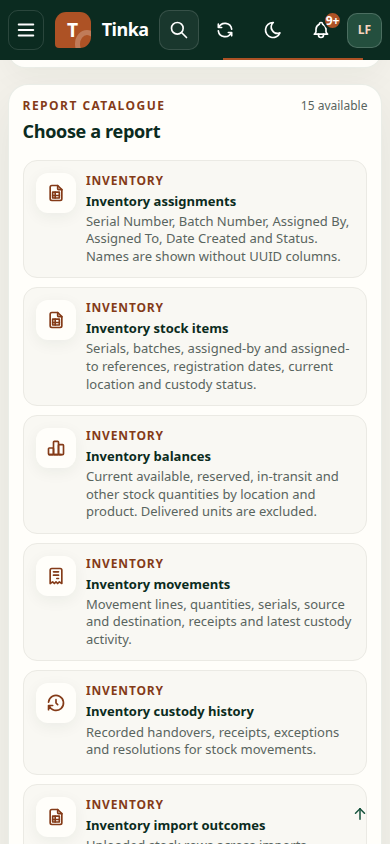
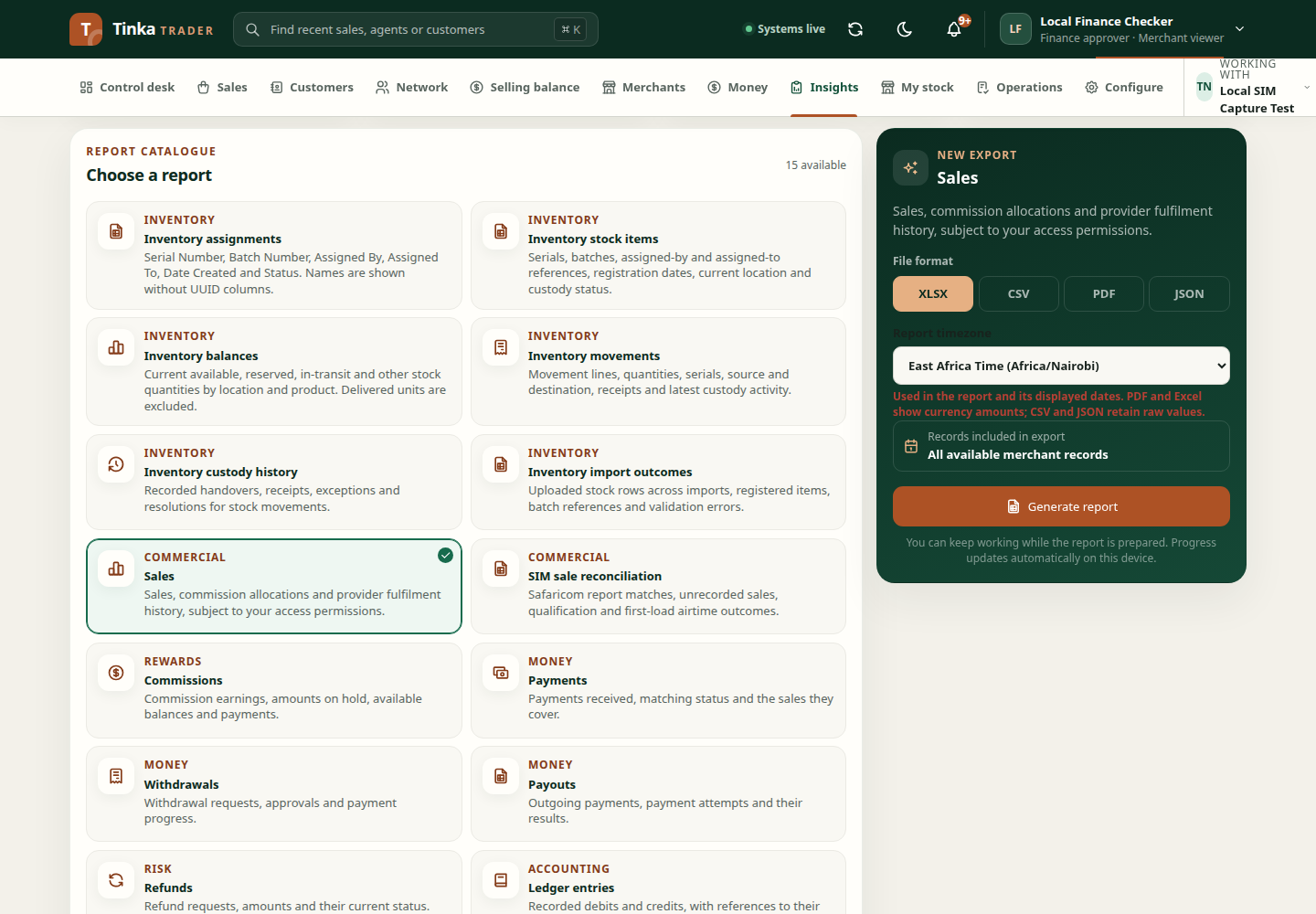
Choose a report
| Report | Use it to inspect |
|---|---|
| Sales | Sales records, current statuses and amounts |
| Commissions | Earnings, held amounts and payment information |
| Payments | Received money and matching status |
| Withdrawals | Requests, approvals and progress |
| Payouts | Outgoing instructions and results |
| Refunds | Refund requests and states |
| Ledger entries | Debits, credits and source references |
| Audit log | Who acted, when and on which record |
| Inventory stock | Registered items, serials, batches and current stock state |
| Inventory balances | Stock quantities by location and product |
| Inventory movements | Dispatch and receiving records |
| Inventory custody | Agent custody and handover evidence |
| Inventory imports | Uploaded stock registration outcomes |
| Inventory assignments | Serial Number, Batch Number, Assigned By, Assigned To, Date Created and Status |
Generate an export
- Open Insights and confirm the operating merchant.
- Choose the report in Report catalogue.
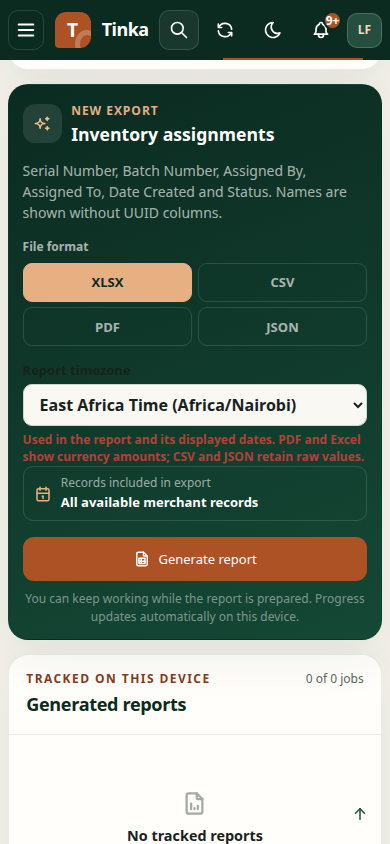
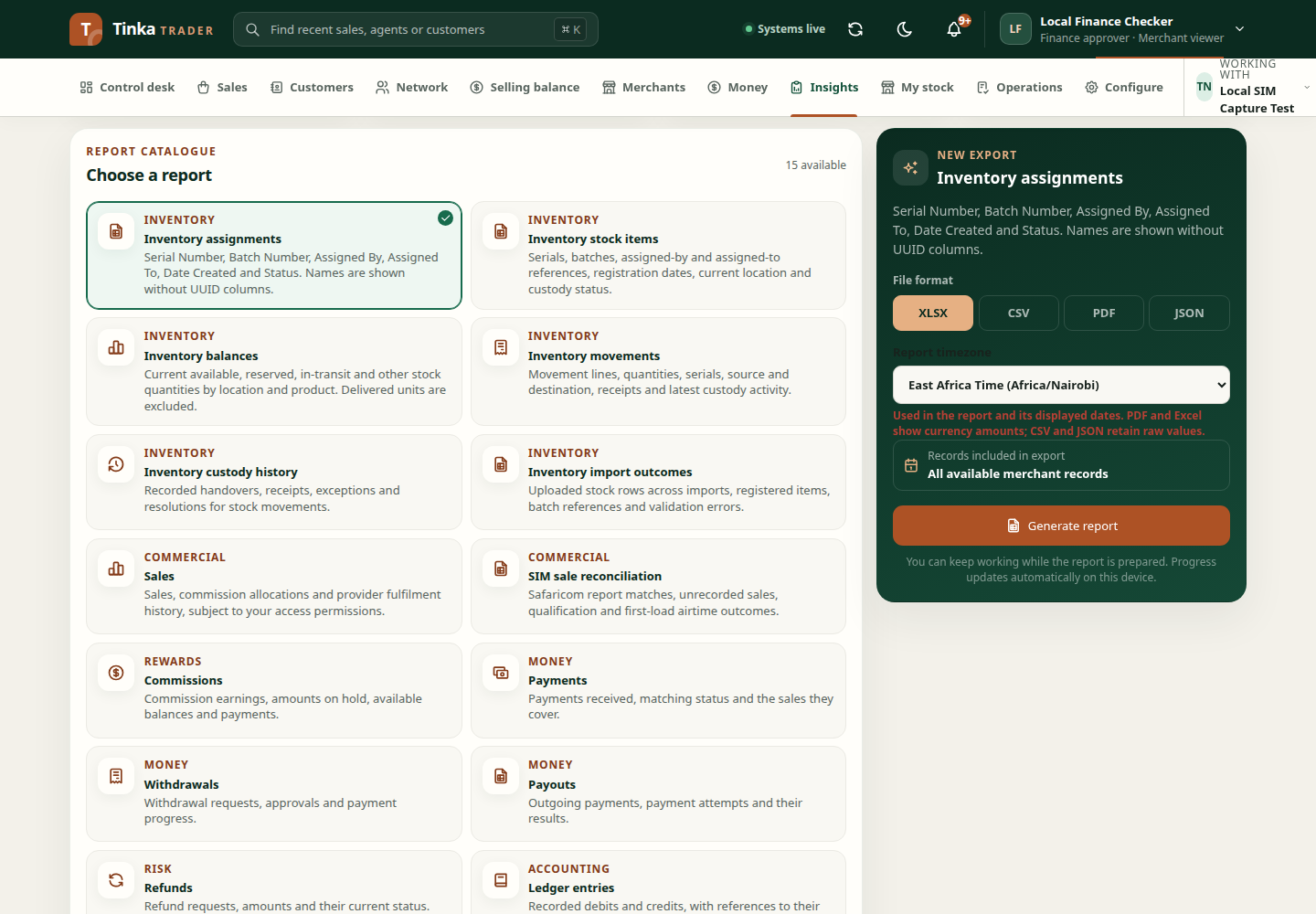
- Select File format: PDF, XLSX, CSV or JSON.
- Choose Report timezone (Africa/Nairobi or UTC) and read Records included in export before submitting.
- Select Generate report and wait for the job to appear.
- Follow its progress in Generated reports. Use Refresh jobs if needed.
- Select Download when the file is ready.
Use the available report-specific filters and period controls. Read the selected period basis: a date filter uses that report's documented date field, not necessarily the date the physical item was sold. Inventory reports offer the relevant stock/location/agent filters where supported.
Default limits are 500 rows for PDF and 1,000,000 for CSV, XLSX and JSON, subject to file-size limits. Exceeding a limit fails the job rather than publishing a partial file.
PDF and Excel show currency amounts such as KES 45.00, with readable dates in the selected timezone. Nairobi dates show EAT. Generated reports show Requested and Data as of in each report's captured timezone. CSV and JSON retain exact minor-unit values and ISO timestamps for machine use. Excel also retains exact values in hidden raw audit columns; its Metadata sheet provides display and captured values.
Previously generated files keep their original layout. Generate a new report to use the current formatting. Report template/checklist downloads in other forms are separate from these live data exports.
History and expired downloads
Report history is restored from jobs created in this browser. It is not a complete server-wide report archive, and another device may show different tracked jobs.
If a link expired, use Regenerate for a new file. Inspect the requested report and merchant again before downloading. A downloaded report is a snapshot at generation time, not a live view.
When generation fails
The connected service may reject report requests. Record the displayed message and reference and share them with support. Check both report read and export permissions. Do not repeatedly generate the same report without inspecting the existing job.
Store downloaded financial and customer information according to your organisation's handling rules.
Download an uploaded-stock report
A checker with report access opens Insights, chooses Inventory imports for upload outcomes or Inventory stock for registered serials, applies the relevant filters and generates a report. Inventory assignments is useful for tracing who received each serial and batch. Stock intake and assignment are different events; choose the report that answers your question.
For the result of one upload, reopen Operations → Inventory → Upload stock → Import history and download its saved results/errors. Export loaded rows on My stock is a separate browser download containing only loaded rows.