Stock maker: give an agent serialized stock
Use this path when physical SIMs or devices have already been assigned to an agent and you need Trader to record the same exact serials. A product assignment allows an agent to sell a product; a stock movement records which physical units the agent holds. Both are needed for a serialized sale.
Prepare the records
Confirm Working with. Check that the product exists under Configure → Products, is active and is configured as physical, serialized stock. Check that the selling campaign includes it. The agent needs an active profile, suitable selling access and a campaign assignment. Stock upload itself does not create those records.
Write down the physical handover list: agent, product, batch and exact serials. Do not substitute a count for the serial list.
Screen 1 — Inventory locations
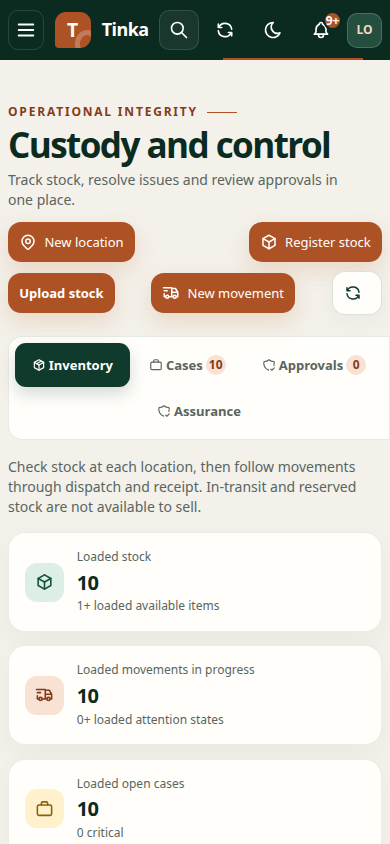
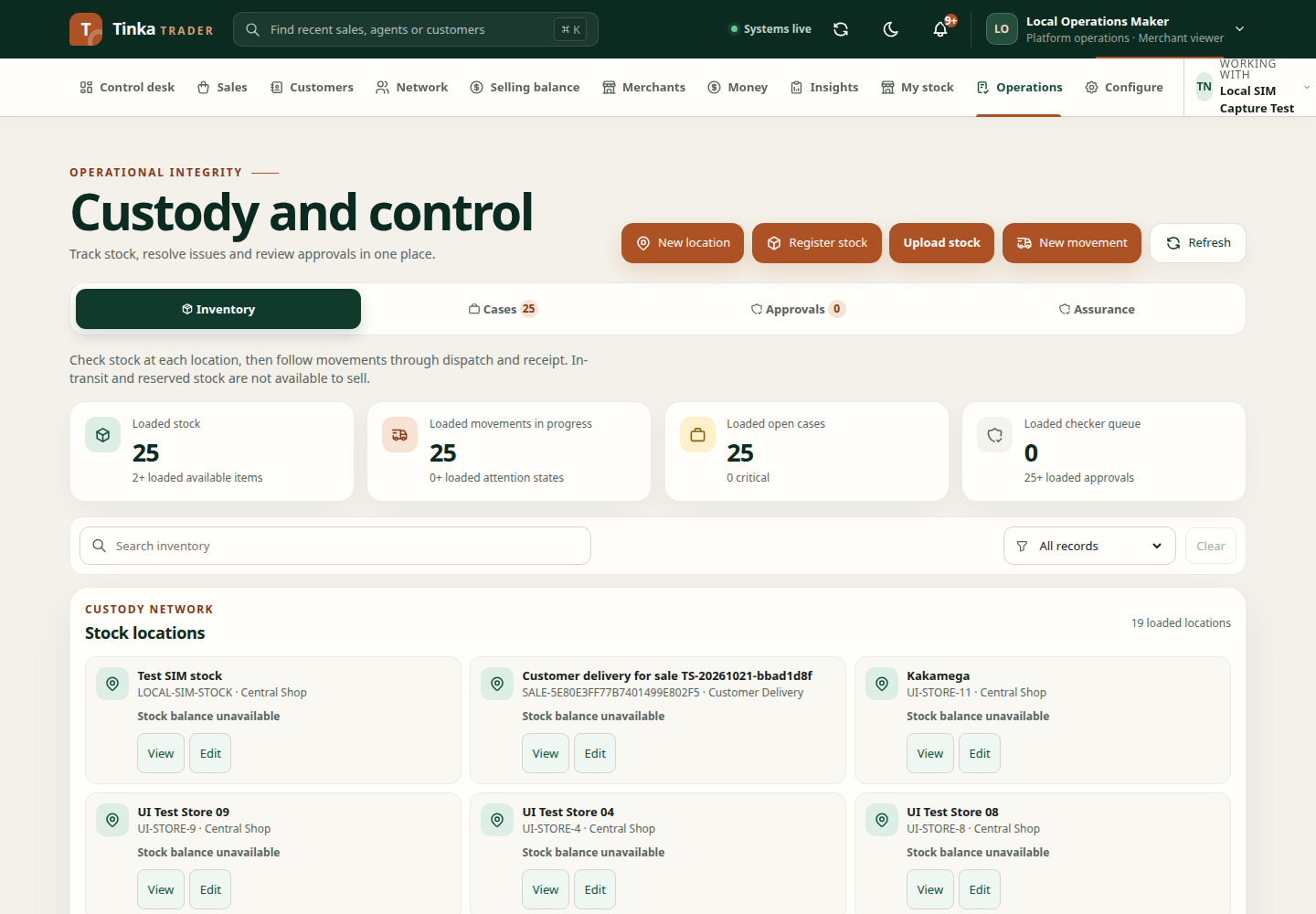
Open Operations → Inventory and find the location holding the uploaded units. In the agent custody movement flow, Trader can reuse the receiving agent's eligible location or prepare an empty one. You do not need to create a separate location first. If the agent cannot be selected, check their active profile, stock custody access and your team coverage.
Screen 2 — Upload stock
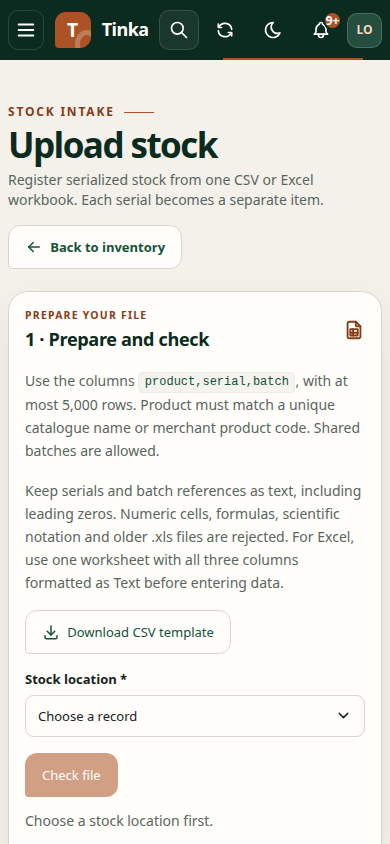
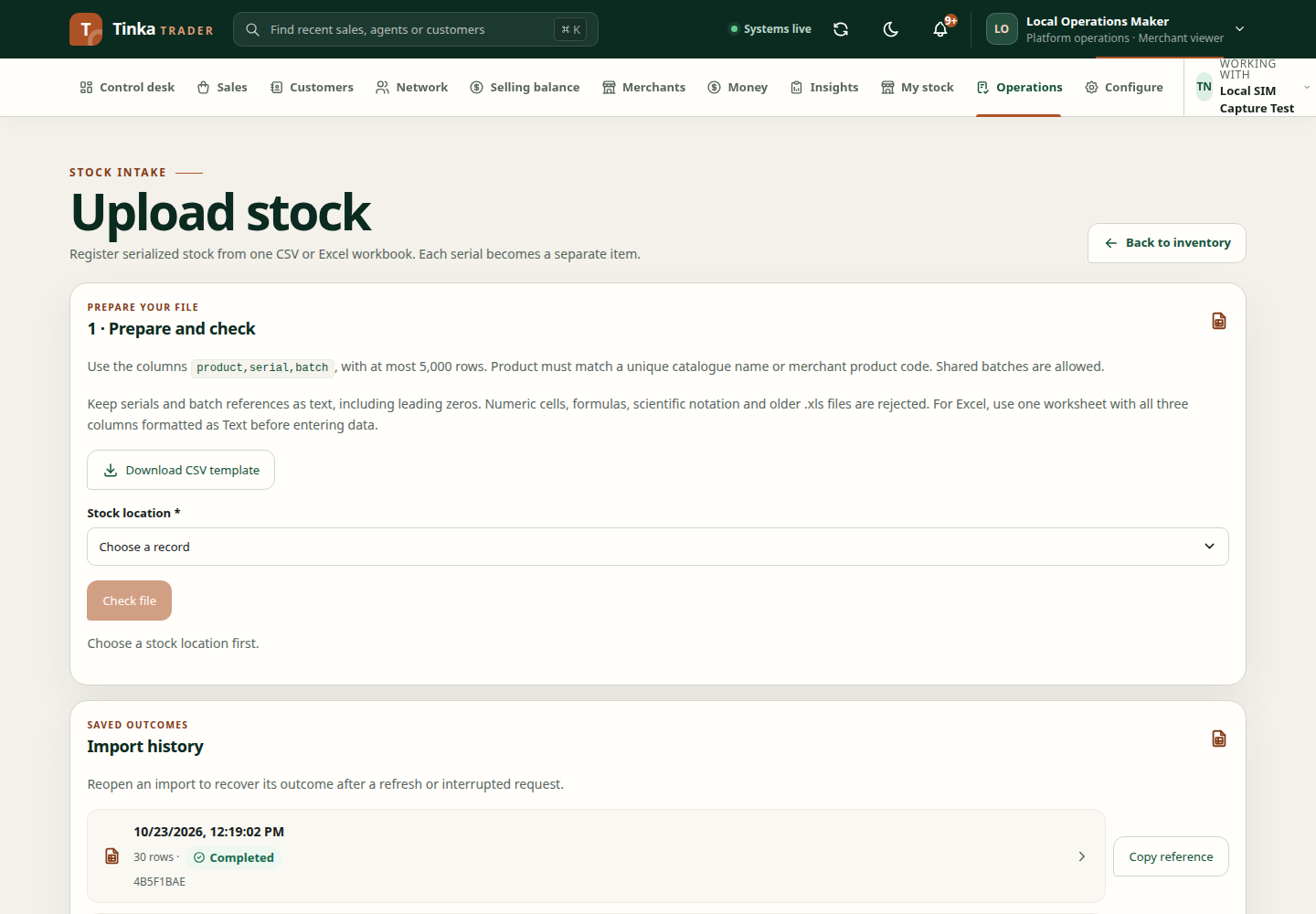
If stock is already registered at the source location, skip this screen. Otherwise select Upload stock.
- Select the Stock location where the physical stock currently sits.
- Download the CSV template or prepare a
.xlsxfile with exactlyproduct,serial,batch. Keep serials and batches as text. Use at most 5,000 data rows per file; split a larger delivery into separate files. - Upload the Completed stock file and wait for its clean scan.
- Select Check file. In Review and register, inspect row errors and the intended location. Checking creates no stock.
- If every row is valid, select Confirm registration, then Register all items. Confirm the registered count and inspect Controlled stock.
An unknown product means the selected merchant does not have a unique matching eligible catalogue product. Correct the catalogue or file; changing the stock location will not fix a product mismatch. See full upload guidance.
Screen 3 — Create stock movement
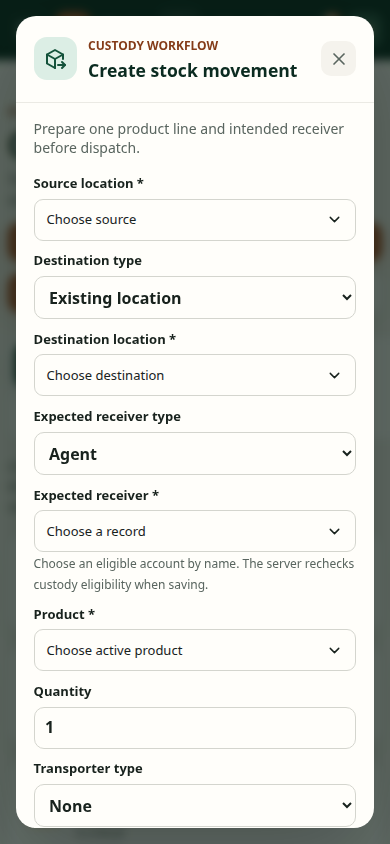
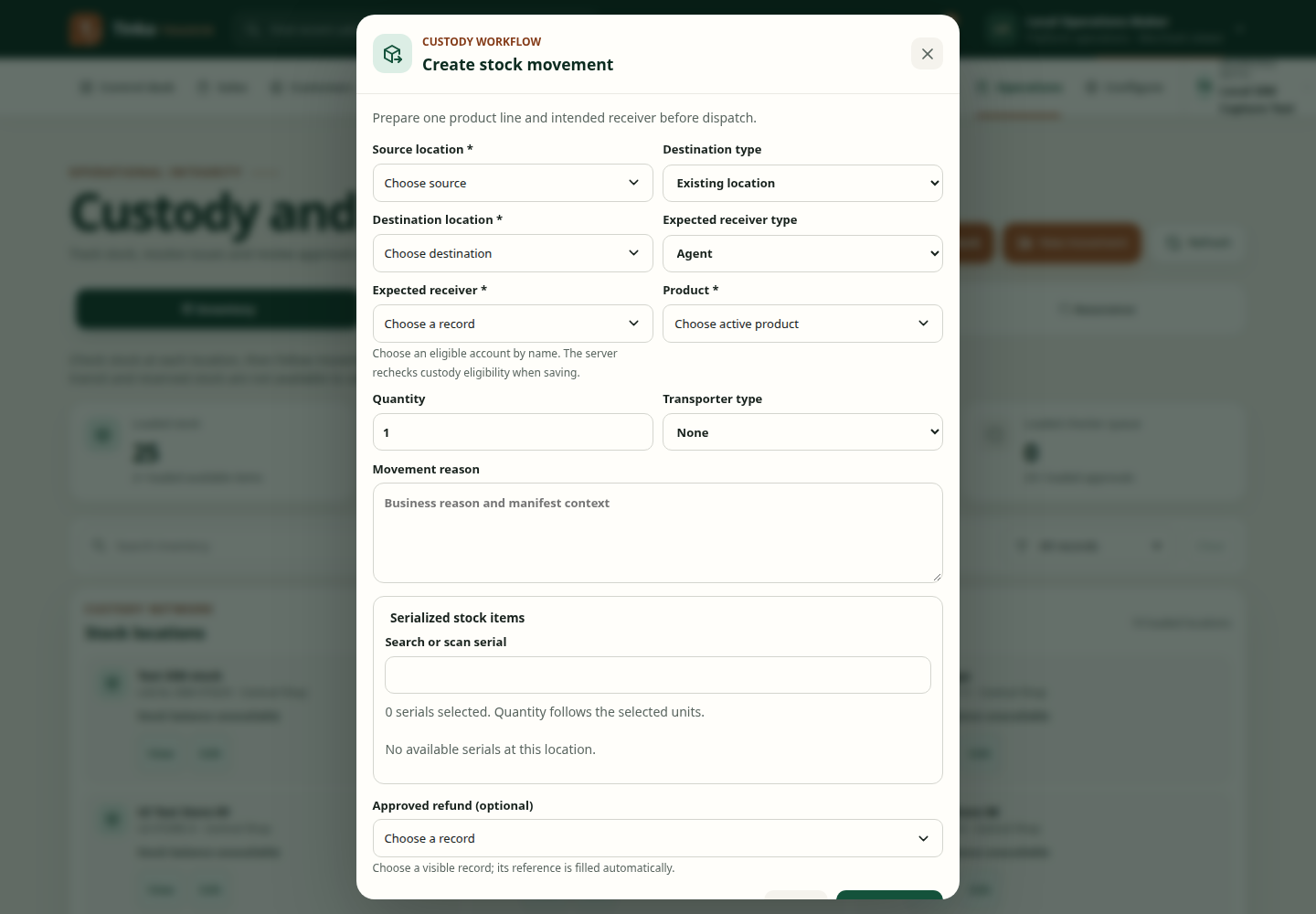
Select New movement → Agent custody under Operations → Inventory. If you are not a team or cluster lead moving stock to an agent you manage, use Existing location and follow your authorised workflow.
| Field or control | Enter or check |
|---|---|
| Source location | Location where the selected units are recorded now. |
| Receiving agent | Select the intended agent by name. Trader prepares the destination and receiver details. |
| Product | Same product as the physical units. |
| Serialized stock items | Use Search or scan serial and select each exact physical serial. |
| Quantity | Follows selected serials; confirm it equals the handover count. |
| Movement reason | Brief business reason and handover reference. |
Review and create the movement. Expected result: a Draft in Movements. This has not sent the stock to the agent yet.
Screen 4 — Request dispatch
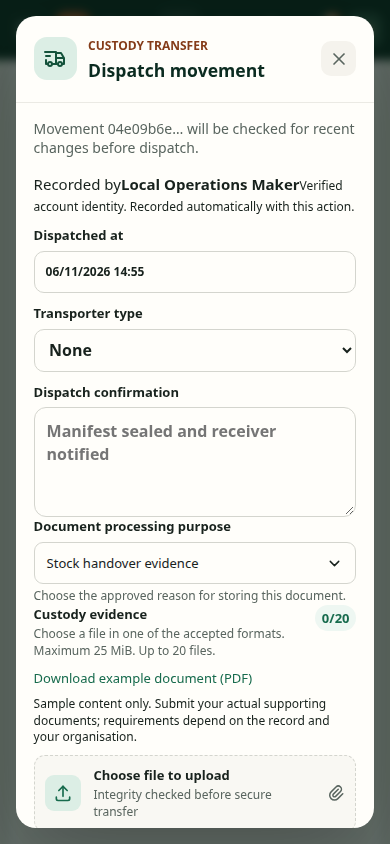
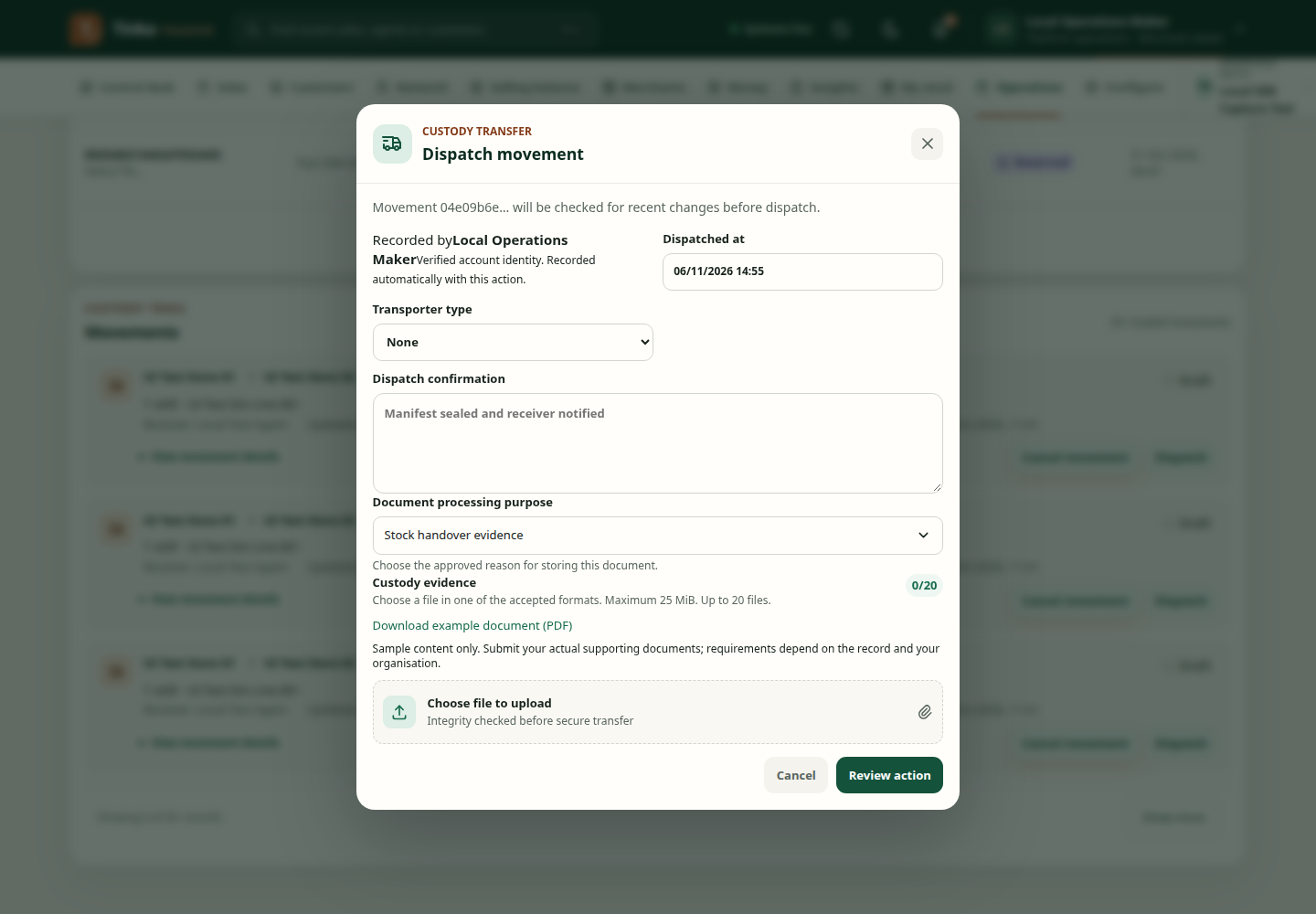
When physical dispatch actually occurs, find that draft in Movements and select Dispatch. Check your signed-in name under Recorded by. Trader supplies the verified account identity; no actor UUID entry is needed. Enter the dispatch time and a factual Dispatch confirmation. Select an approved document purpose and attach custody evidence if your policy requires it. Review the action.
Expected result: a stock dispatch request for independent approval. Share the movement reference and physical manifest with the checker. The maker cannot approve their own request. A request being accepted is not proof that stock is dispatched or received.
Handover and final check
After checker approval, refresh Movements and confirm the movement is Dispatched. Have the actual receiver record the receipt. Then check the agent's My stock page: exact serials should become Available. The agent can select them for sale only when their campaign/product assignment and other sale requirements are valid.
If a serial is absent from the picker, check product, source location and current availability. If your account identity cannot be confirmed, refresh and ask an access administrator to review your account if needed. For a document-purpose error, ask your privacy administrator to review the document setup.
Stock import — screen example
Create movement — screen example
Dispatch stock — screen example