Create and review assignments
An assignment connects an agent with a campaign, products, reward plan and permitted operating context. It helps determine whether a sale is eligible for that agent.
Before you start
Confirm the agent and campaign are suitable for the work. You need access to the referenced records as well as permission to create assignments. An empty picker may reflect missing read access, not a missing campaign or product.
Create an assignment
- Open the assignments area in Network and start a new assignment.
- Choose Agent and Campaign. Campaign choices are limited to the applicable active records.
- Select the Products included in this assignment.
- Choose the appropriate Reward plan.
- Enter Territory codes as supplied by your organisation, when required.
- Set Starts and Ends. Review the period before saving.
- Fill Cluster ID (optional) and Team ID (optional) only if your administrator has supplied the correct identifiers.
- Choose Team lead for an agent and Cluster lead for a team lead where applicable. The person must have the matching active role in this merchant.
- Submit, then open the assignment detail to check its references and period.
Cluster and team fields currently accept IDs. Searchable name lists are not available in this client. Do not enter a team name into an ID field or make up an identifier.
Add your campaign coverage as a team lead
Open a managed agent's profile and choose Add campaign coverage. Select one of your current campaign assignments, review the inherited coverage, and choose Assign coverage. The agent can already be managed under a different campaign; no new invitation or registration is needed.
This uses the team lead's existing onboarding permission. Products, territories, reward plan and cluster/team context come from the selected assignment. The team lead remains the agent's direct lead, and access starts immediately. Its expiry cannot exceed the source coverage, either membership, the existing management relationship, or the lead's onboarding grant.
Identical active coverage is reused. An overlapping restriction or a changed source requires review; this flow cannot edit other assignments, change rewards, reactivate suspended coverage, or assign someone outside the lead's managed agents.
Link a cluster through its team leads
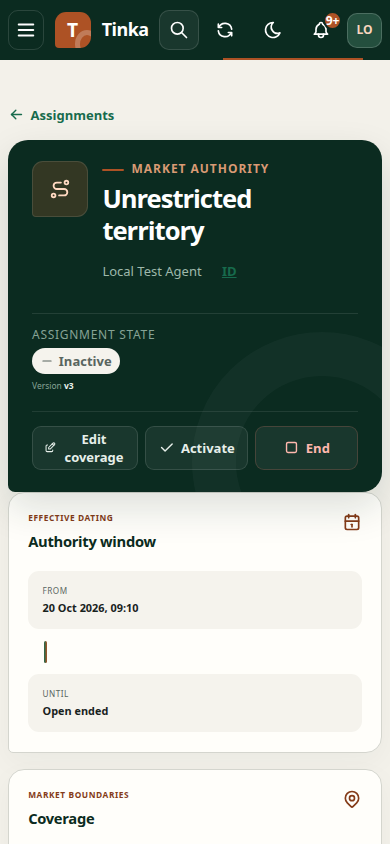
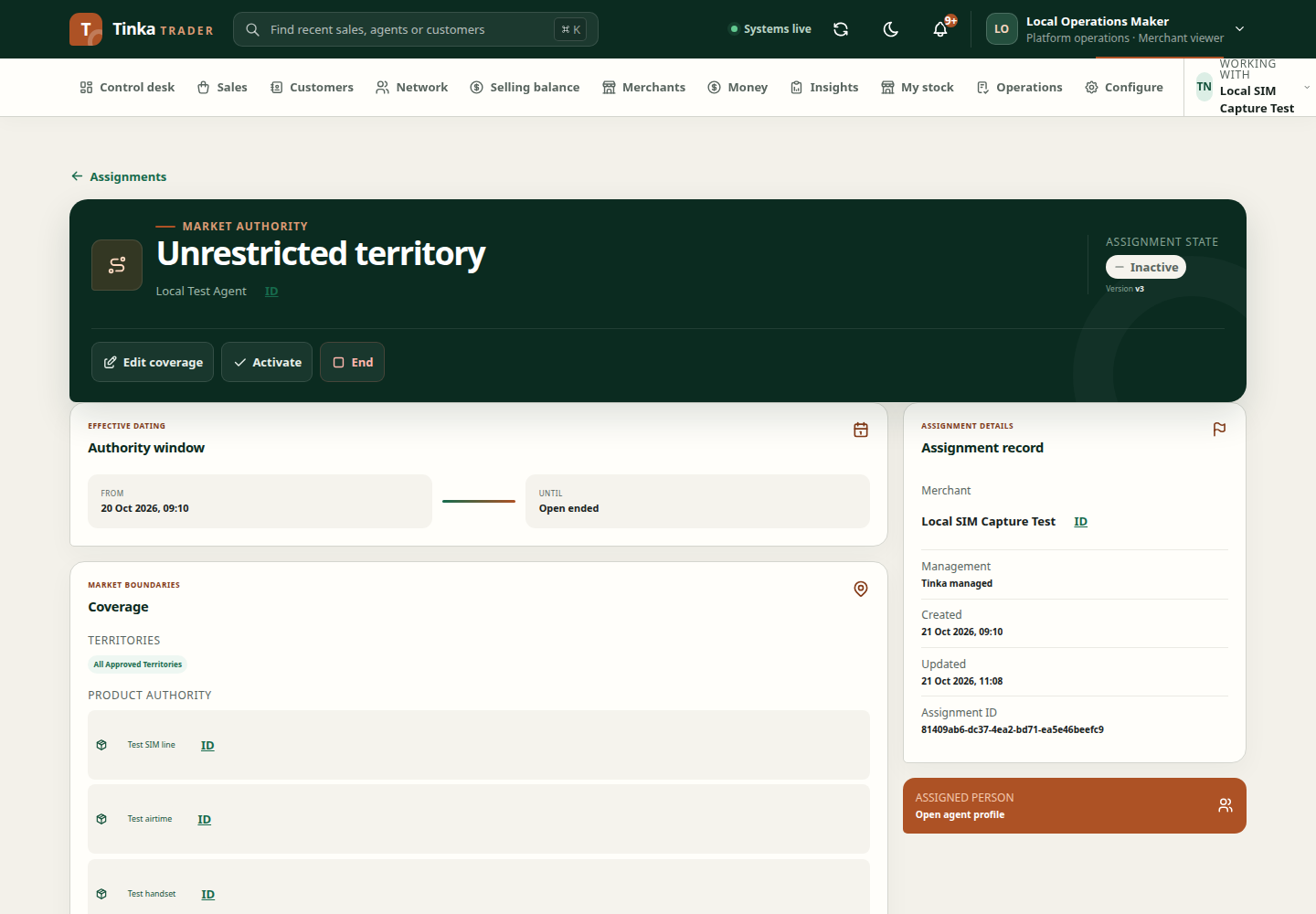
Open the team lead's assignment and choose Edit coverage. Select their Cluster lead and save. Agents whose assignments name that team lead become visible to the cluster lead without editing every agent to add a cluster lead separately.
The relationship must be active and within its validity period. A campaign-specific assignment covers that campaign; an assignment without a campaign creates a merchant-wide relationship. Ending or suspending the link removes inherited access. Cluster leads can review sales performance through their team leads, while each agent's commission balance and selling balance remain private.
Existing sales keep their captured reward beneficiaries. Linking a cluster changes visibility through the current team relationship; it does not recalculate old commissions.
Check an assignment when a sale is blocked
Compare the sale's agent, campaign, products, territory and occurred-at time with the assignment. A record existing in the list does not mean it covers every sale or every date.
Clear existing list filters if an assignment appears missing. If option loading failed, use Retry options. If a reward plan or campaign is unavailable due to access, ask an administrator to review the permission rather than choosing an unrelated record.
For policy setup, see campaigns and reward plans.
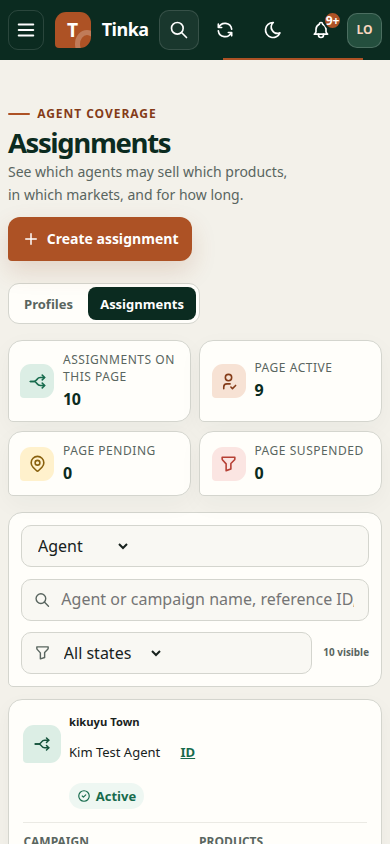
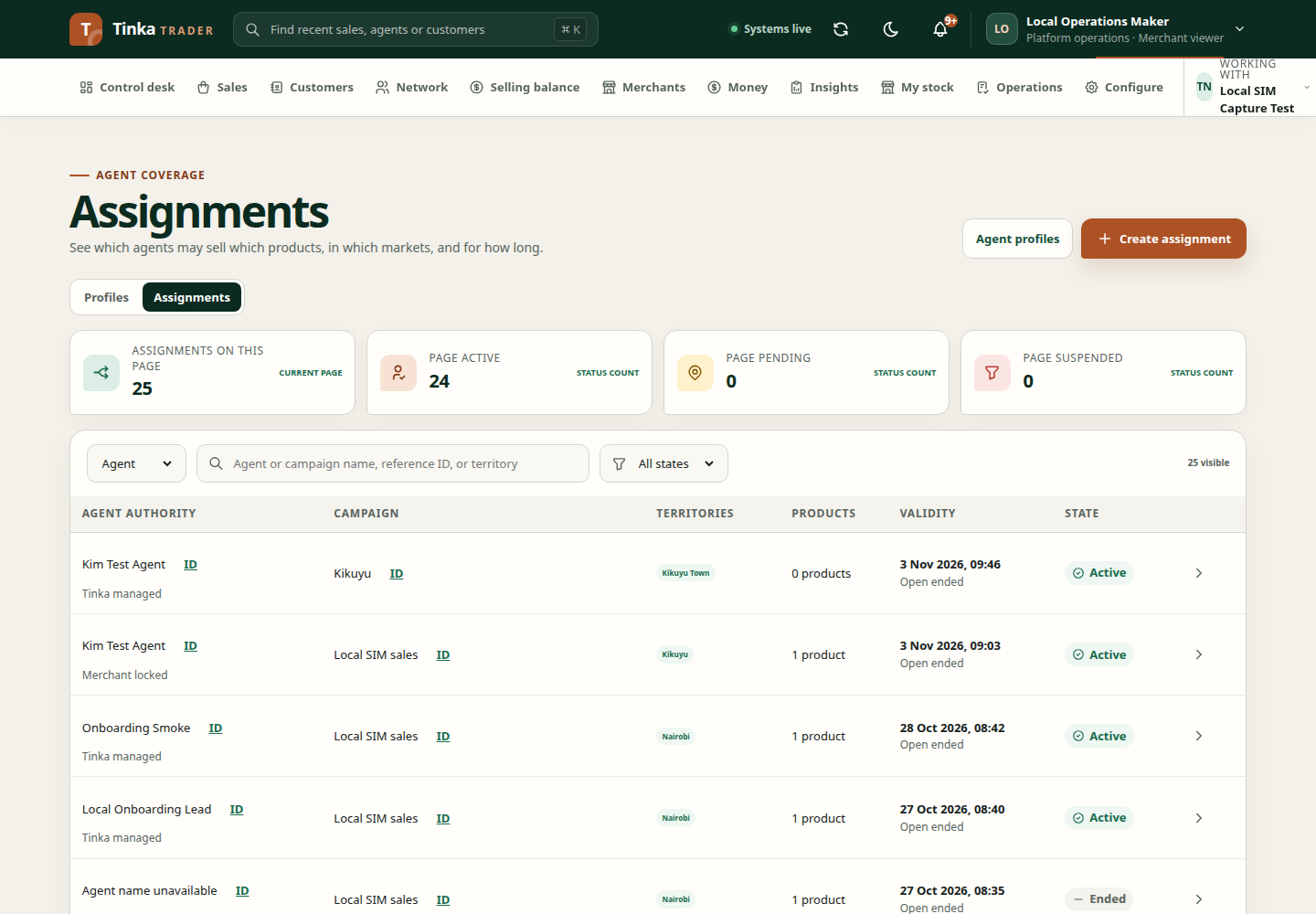
New assignment — screen example
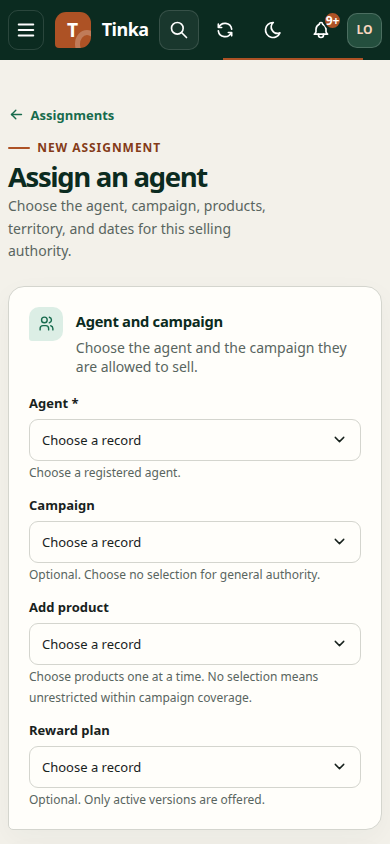
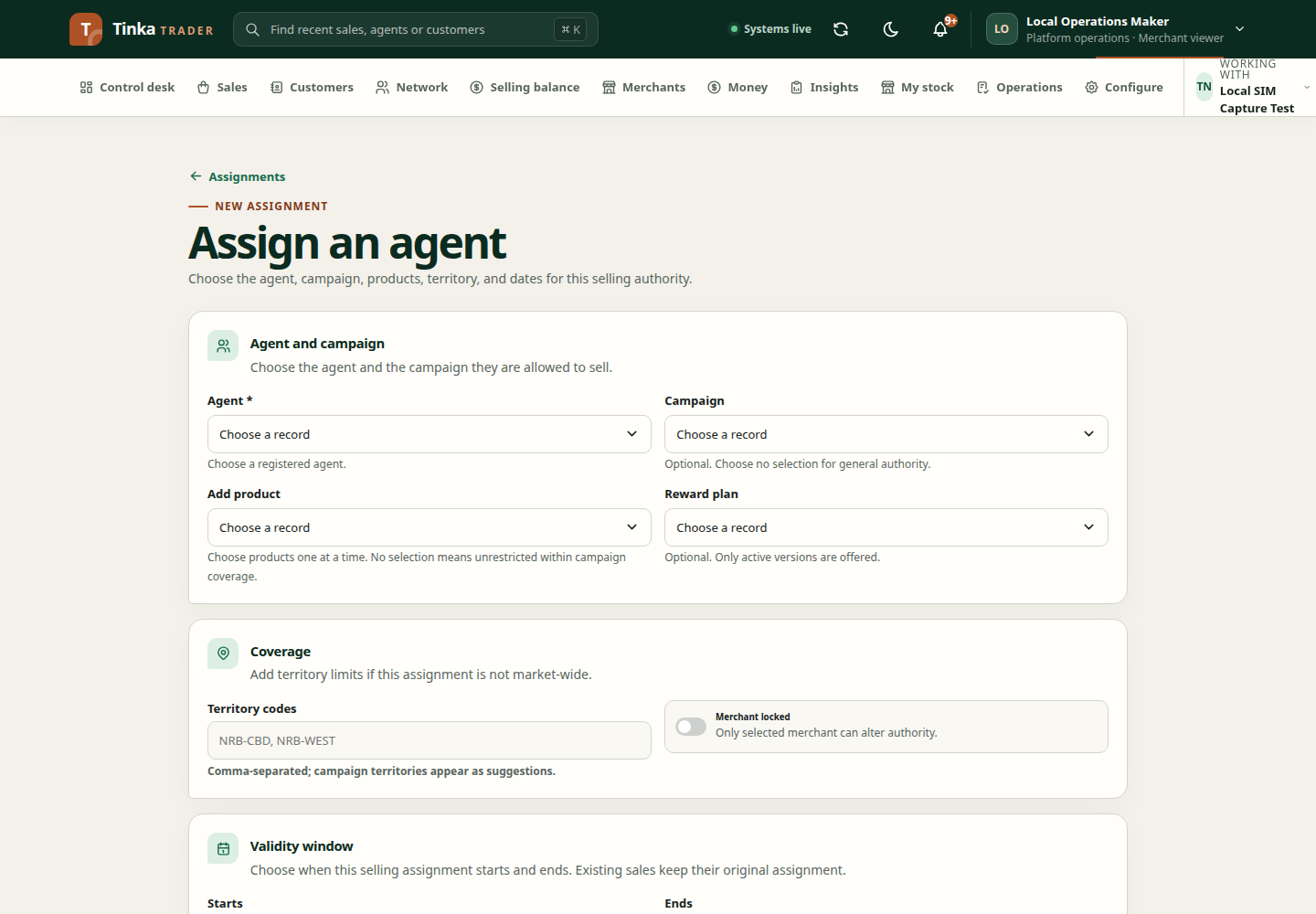
Selling assignment details — screen example