Read the Control desk
The Control desk is a starting point for understanding the selected merchant's activity. Summary cards help you decide where to investigate; detailed registers remain the place to inspect individual records.
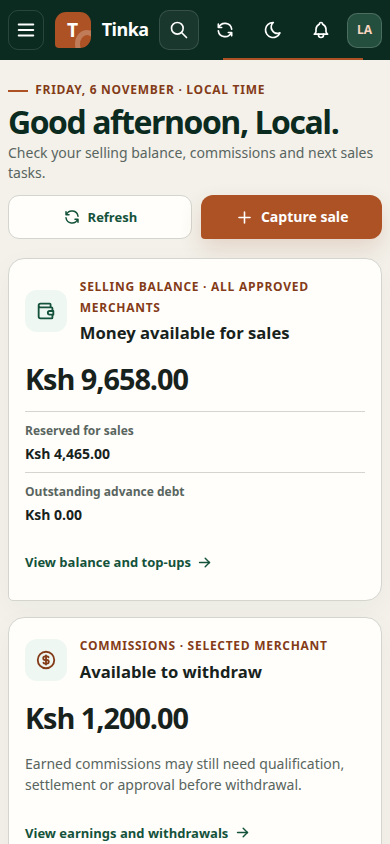
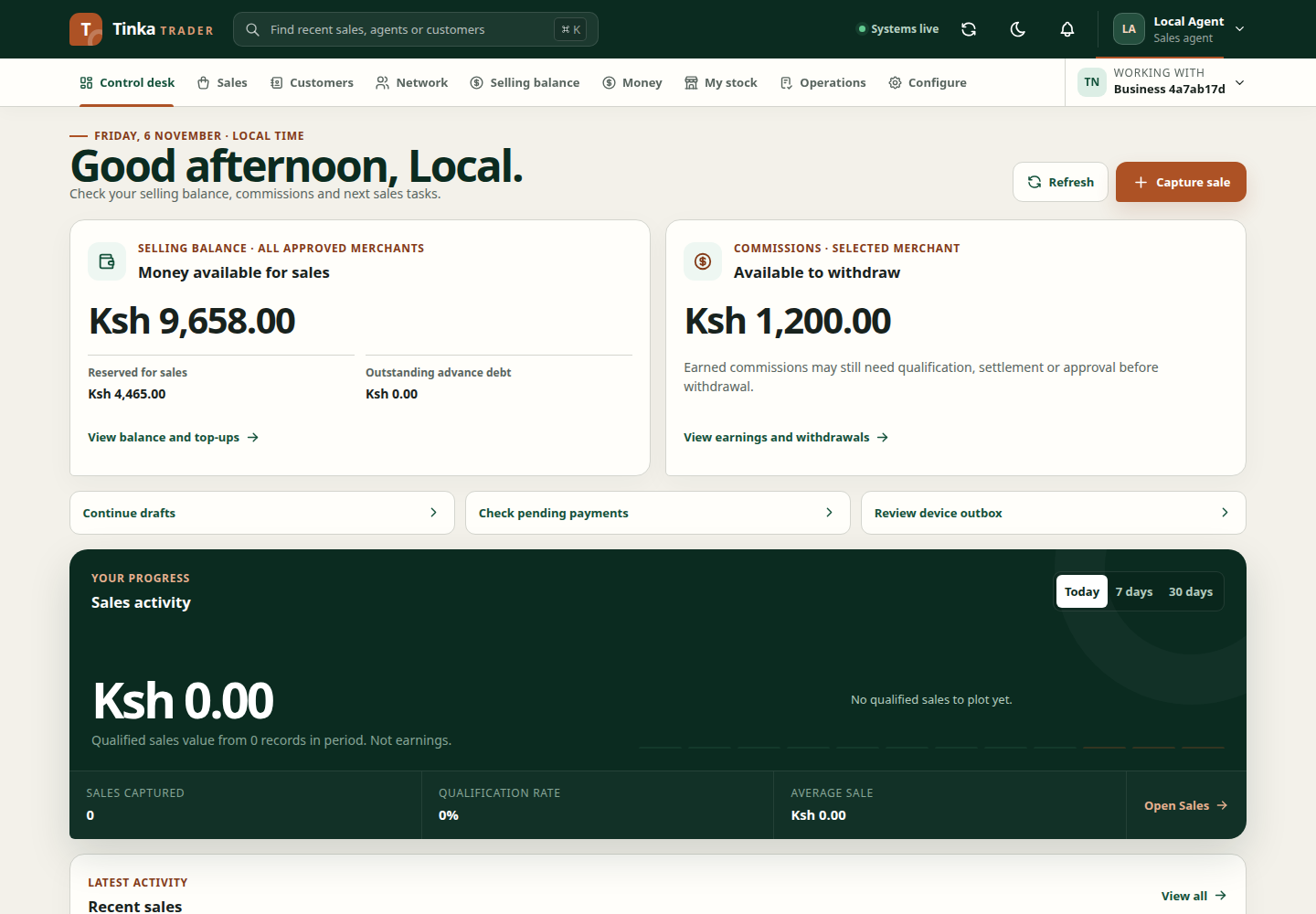
Review the dashboard
- Confirm Working with.
- Select the reporting period available on the dashboard.
- Wait for the period's data to refresh before comparing figures.
- Read the labels and units on each card. A count of records and a money total describe different things.
- Follow the relevant workspace to inspect the records behind a change.
Changing or reselecting a period requests current information. Permissions affect which sales and network data is available. A person without sales access should not expect sales totals to appear simply because another user can see them.
Interpret changes carefully
A zero can mean no matching activity in the selected period. An unavailable or loading section is not a confirmed zero. Read the section's error or loading message before drawing conclusions.
Dashboard amounts are formatted for display. They are not a substitute for a beneficiary's current wallet balance, an approved withdrawal, or confirmation of a completed payout. Use Money for those tasks.
When the figures look wrong
Confirm the merchant and period, refresh once, and open the underlying list. Check record dates and statuses. If one section failed, retry that section where offered rather than repeatedly reloading everything.
If a previously visible section disappears after access changes, request help from your administrator. Do not switch accounts to reuse old cached information. When reporting a discrepancy, include the merchant reference, selected period, affected card and relevant record references—without sharing passwords or full customer details.