Find your way around
The same controls appear across the application. Understanding them saves time in every workspace.
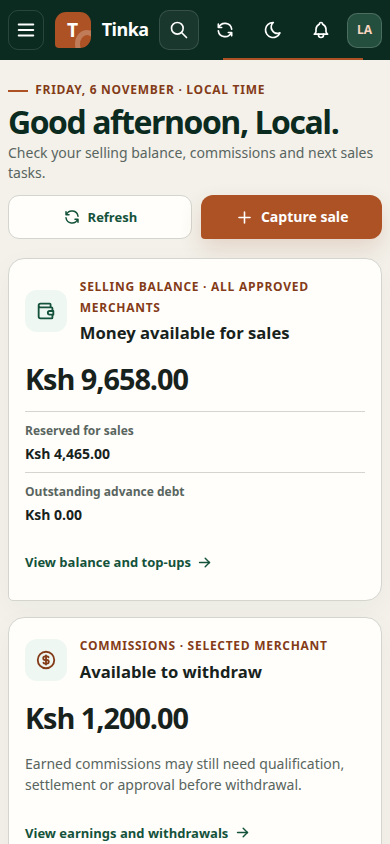
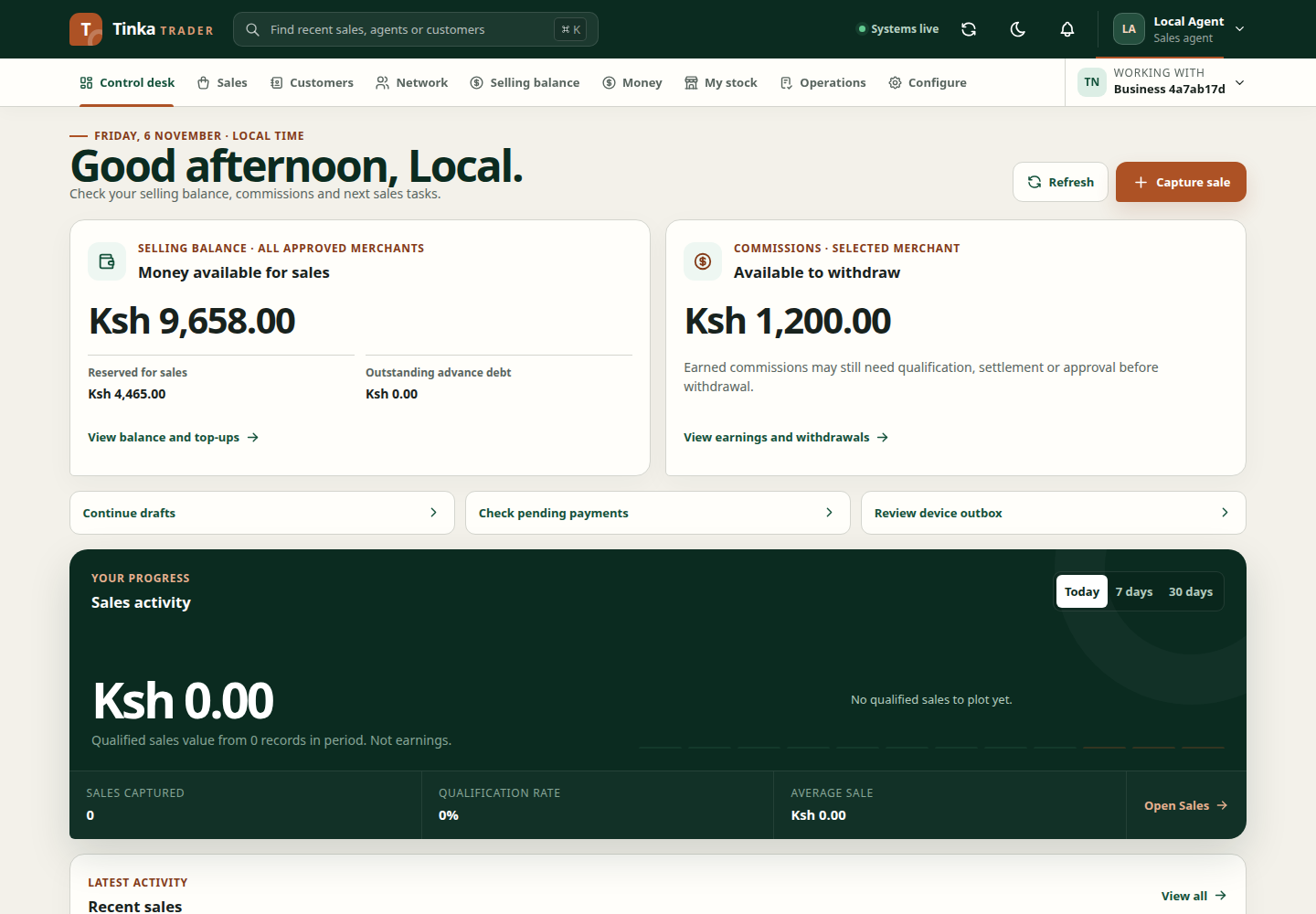
Navigation and search
Use the main navigation to open a workspace. On a small screen, open the navigation menu first. Press Escape to close a menu or dialog where supported.
The application search opens with Ctrl+K or Command+K. It can find accessible workspaces and recent sales, agents and customers. Enter at least two characters for record searches. Results depend on your access and merchant. If you need older or more specific records, use the relevant workspace list.
Choose the operating merchant
Check Working with before creating, editing, uploading or approving. A merchant change reloads the active workspace. Save or finish work before switching. If names cannot load, a merchant identifier may appear instead; do not guess which organisation it represents.
Lists and filters
Use the filters already present above the list. Clear or Clear filters returns to a wider view. A blank result can mean no records match, not that the merchant has no records at all.
Lists intended to show recent additions first are ordered across fetched pages. Explicit choices such as Name A–Z still have their own meaning. Large matching collections can take longer to load. Where a fallback notice appears, some filtering is being applied to loaded records because the server does not support the requested filter.
Refresh, notifications and forms
Refresh requests current data. A spinner means work is in progress; repeated clicks do not help. Notifications link to work such as pending approvals or open cases.
Required fields and validation messages explain what needs attention. Dropdowns and date pickers support the selected appearance and fit smaller screens. Tooltips give extra guidance on hover or focus, but important instructions also appear beside the controls.
Use the theme control to switch appearance. See dates and amounts for timezones and money entry, and access help when an action is unavailable.