Manage agents
Agents are the people or entities doing assigned sales work. Their identity, contracts and capabilities affect what they can do.
Find or create an agent
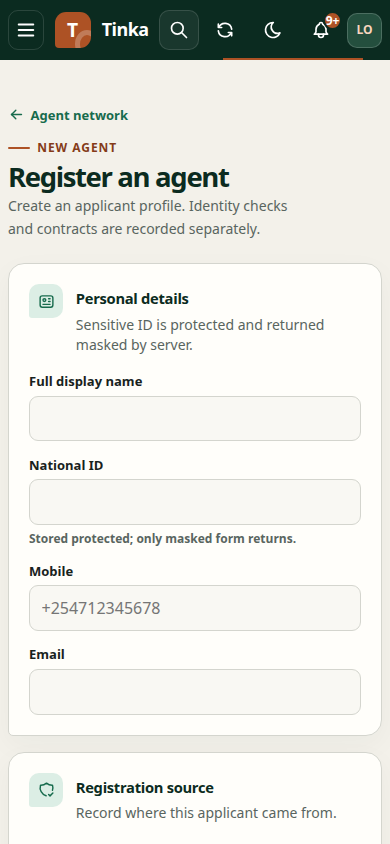
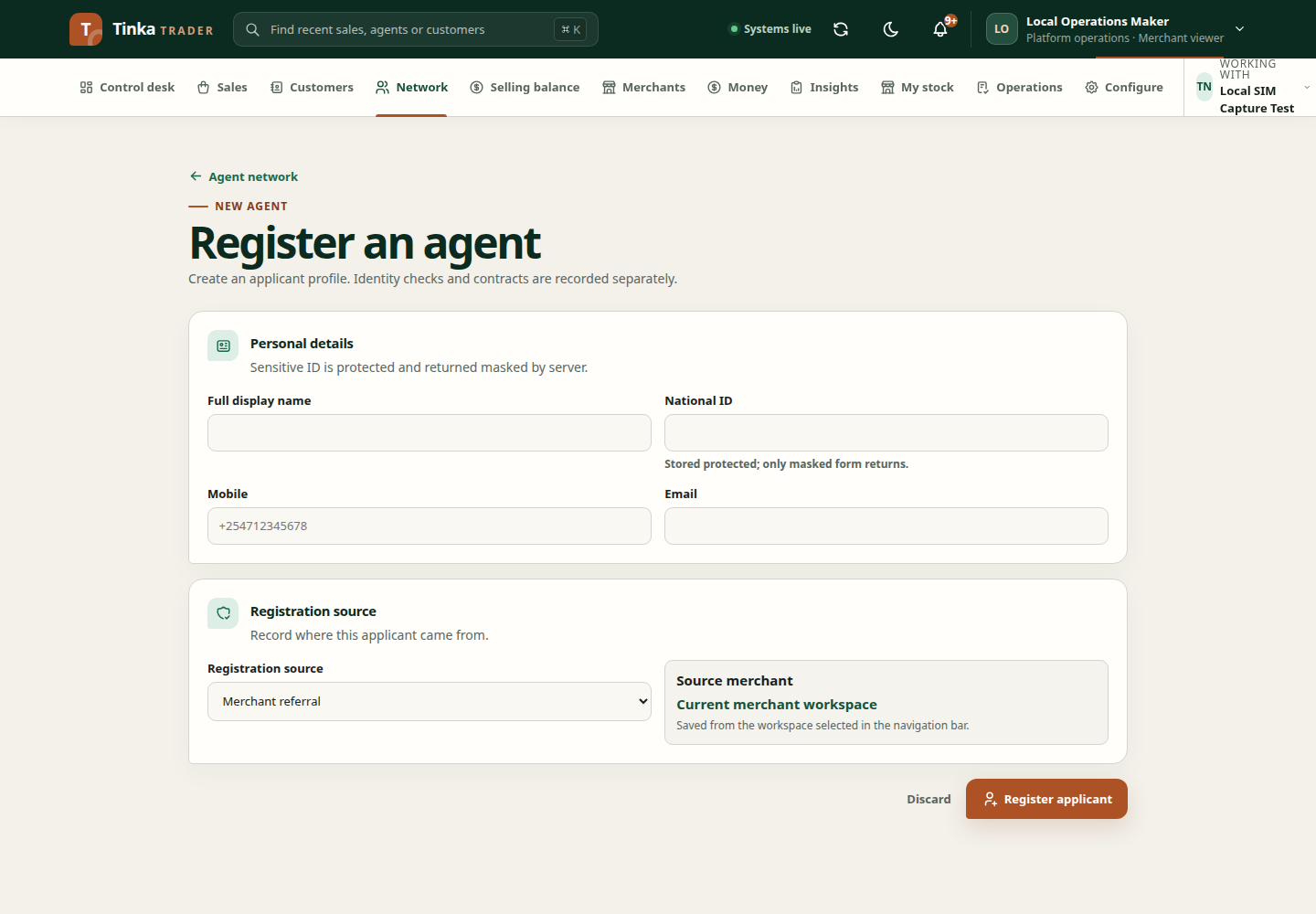
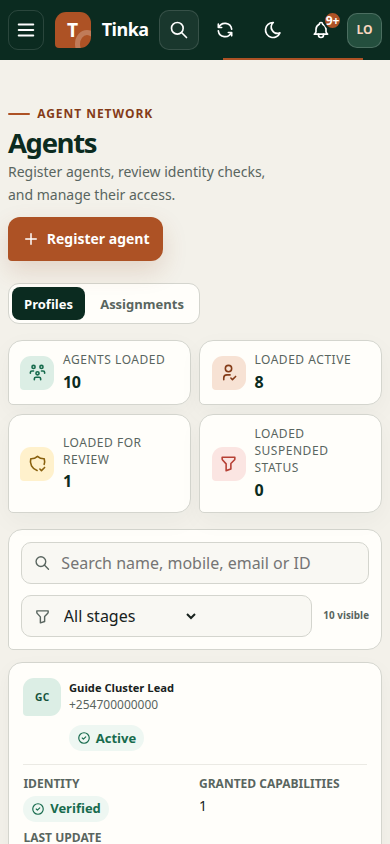
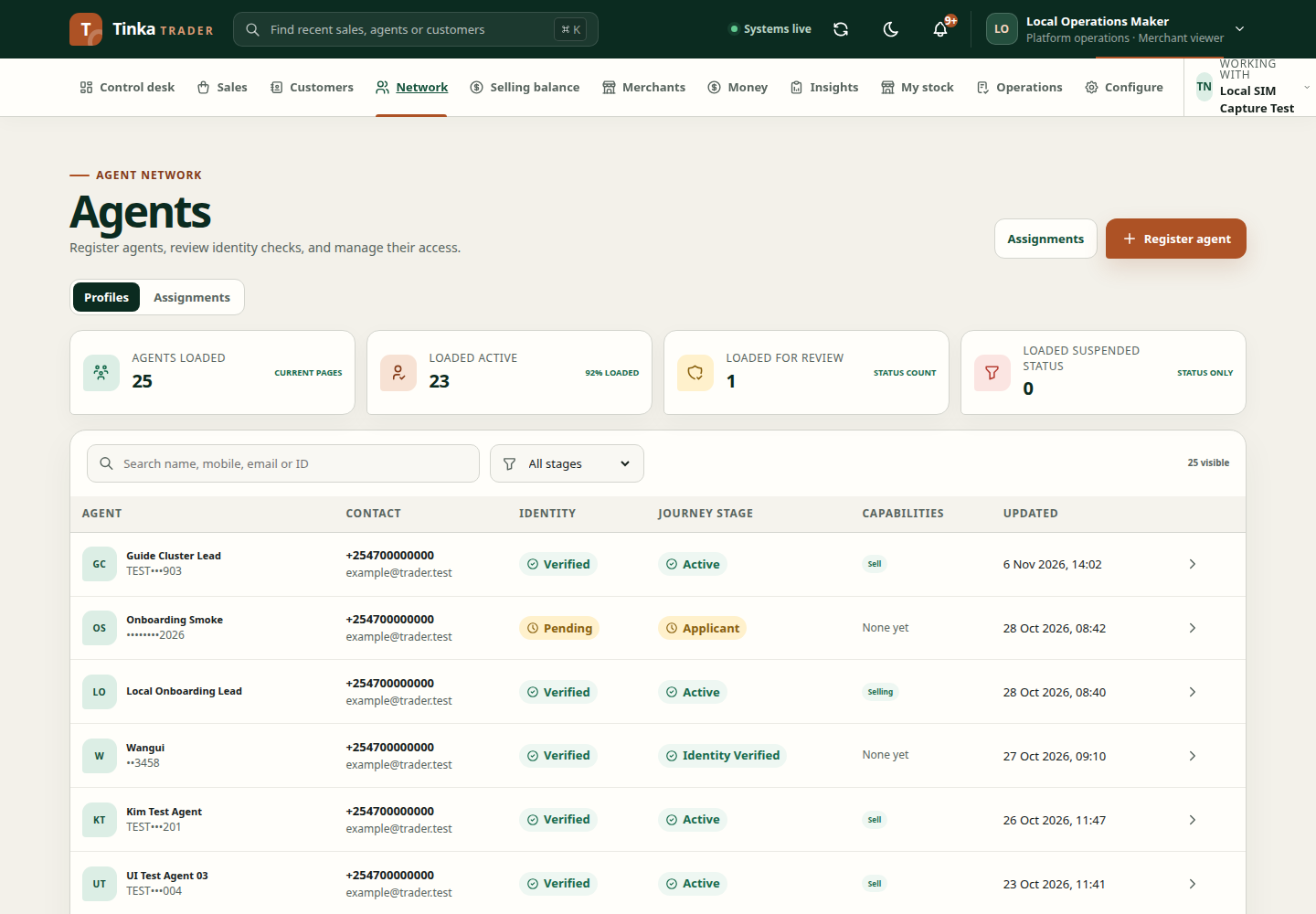
Open Network and search the agent list. Inspect an existing profile before creating another record. When registering, provide the requested display name, mobile and other profile details using the form's validation rules.
After saving, open the profile and confirm the record. Registration alone does not prove identity verification, a valid contract or an active assignment.
Invite an agent as a team lead
Team leads with onboarding access can choose Invite agent from the agent list. Select your current campaign coverage, enter the agent's name, email and mobile, and choose email, SMS, or both enabled delivery channels. The agent receives your campaign, product and territory coverage when they accept, with you assigned automatically as their team lead.
The recipient opens the invitation link, signs in or selects Register on the identity-provider page using the invited email, then verifies that email and completes any requested password or authenticator setup. They return to the link, confirm their name and enter their National ID. See the invited agent walkthrough for each screen.
A valid invitation from a currently authorised team lead activates the agent profile and creates selling and stock custody membership, stock receipt access, and an assignment with the lead's active reward plan. Validation confirms the invitation and signed-in email; it does not assert a separate government or provider ID check. No separate manual activation is needed. The agent still needs required stock and a supported payment method before selling.
The invitation list shows each channel's delivery state. Sent means the transport accepted the message. Retry failed delivery retries failed channels without resending successful ones. Cancelled or expired invitations cannot be accepted. A changed assignment or withdrawn team lead authority requires a new reviewed invitation. Existing application profiles require administrative review rather than duplicate registration.
Update profile details
Use Edit agent details where permitted. Review Display name, Mobile and Email. If the profile changed since you opened it, refresh before retrying rather than overwriting someone else's correction.
Record identity verification
- Open Record identity verification.
- Choose the actual Decision: Verified or Rejected.
- Choose Method: Government database, Provider or Approved manual check, as appropriate to the completed check.
- Enter the Provider reference where applicable and Checked at time.
- Explain the Decision reason and attach Verification evidence when required.
- Submit and inspect the updated verification state.
Do not select Verified because the person is familiar to you if the required check has not happened. The manual method still requires an authorised business process.
Enable the right work
Review contracts and suspensions, then assignments. An assignment connects an agent to campaign, product and reward context. A suspension may block particular capabilities even if the profile remains visible.
If an agent does not appear in a sale picker, check eligibility, campaign, dates, assignment, status and access instead of creating a duplicate agent.
New agent — screen example