Welcome to Tinka Trader
Tinka Trader connects sales, customers, agents, merchants and the money behind their work. This guide helps you complete tasks and understand the result you should expect.
You do not need to learn the whole platform at once. Start with your first session, then choose a learning path for your work.
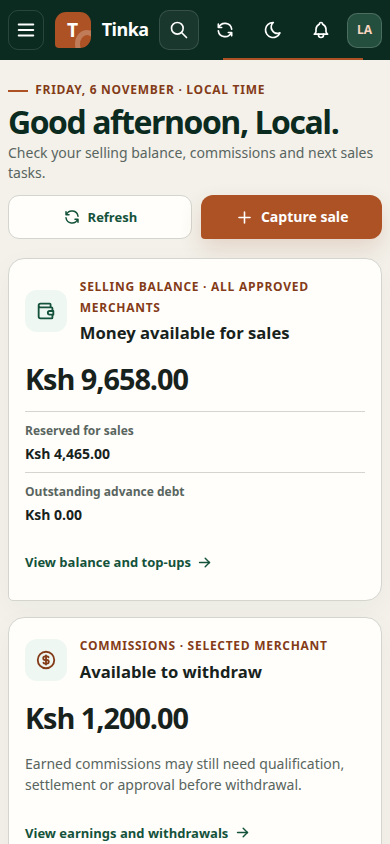
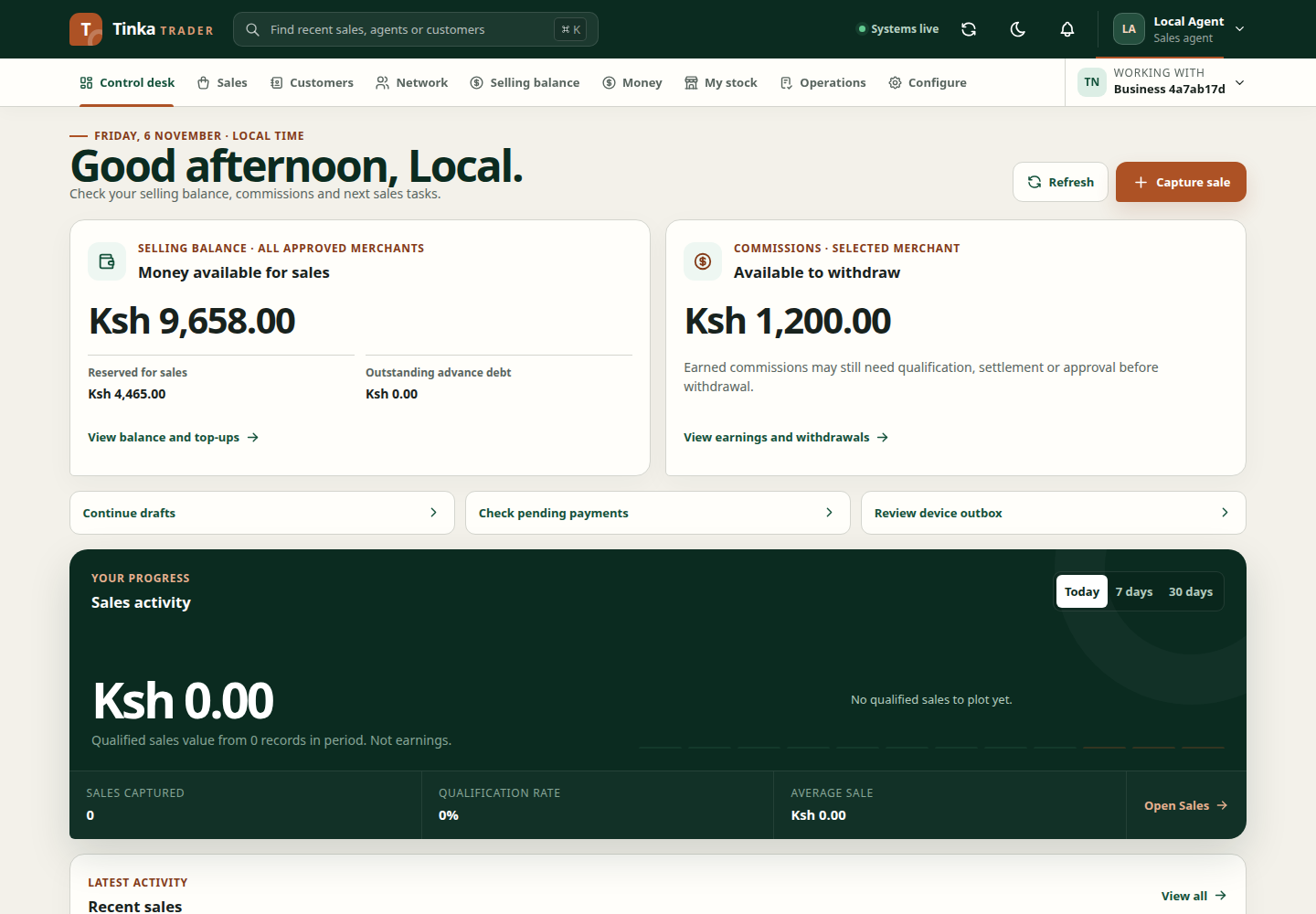
Find the right workspace
| In the application | What you do there |
|---|---|
| Control desk | Review summaries and find work needing attention |
| Sales | Record sales, provide evidence and follow their progress |
| Account | Check funds used for eligible sales and follow wallet activity |
| Customers | Maintain customer details and consent decisions |
| Network | Manage agents, contracts and assignments |
| Merchants | Review organisations, contracts and delegated users |
| Money | Follow receipts, commissions, deposits, settlements and outgoing payments |
| Insights | Generate and download reports |
| My stock | Check your assigned serials, receipts and sale readiness |
| Operations | Track stock, investigate cases and review approvals |
| Configure | Maintain products, campaigns, rules, rewards and connections |
Why your screen may look different
Your account permissions, selected merchant and the record's current state determine which menus and actions appear. Being able to read a record does not automatically allow you to change it. Some actions need a second authorised person to approve them.
Screens marked Preview environment contain demonstration data. A successful preview action is not proof that money moved or a live record was saved. Feature availability explains other differences you may encounter.
Use this guide while you work
A path such as Money → Cash deposits tells you which application menu and tab to open. Bold text identifies a label or action. Examples are fictional. Enter your own authorised business information, not the example values.
For a complete first task, choose the sales agent, team lead, stock maker, stock checker or finance walkthrough. Check the expected result at each screen. If something fails, read the recovery instructions before starting the same task again—especially for payments.