Create and manage campaigns
Campaigns group products and operating conditions for a period of sales work. A campaign's dates and capabilities affect which sales can be captured.
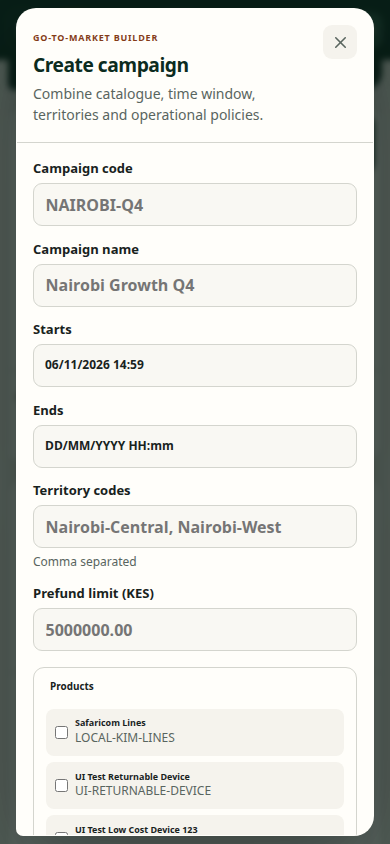
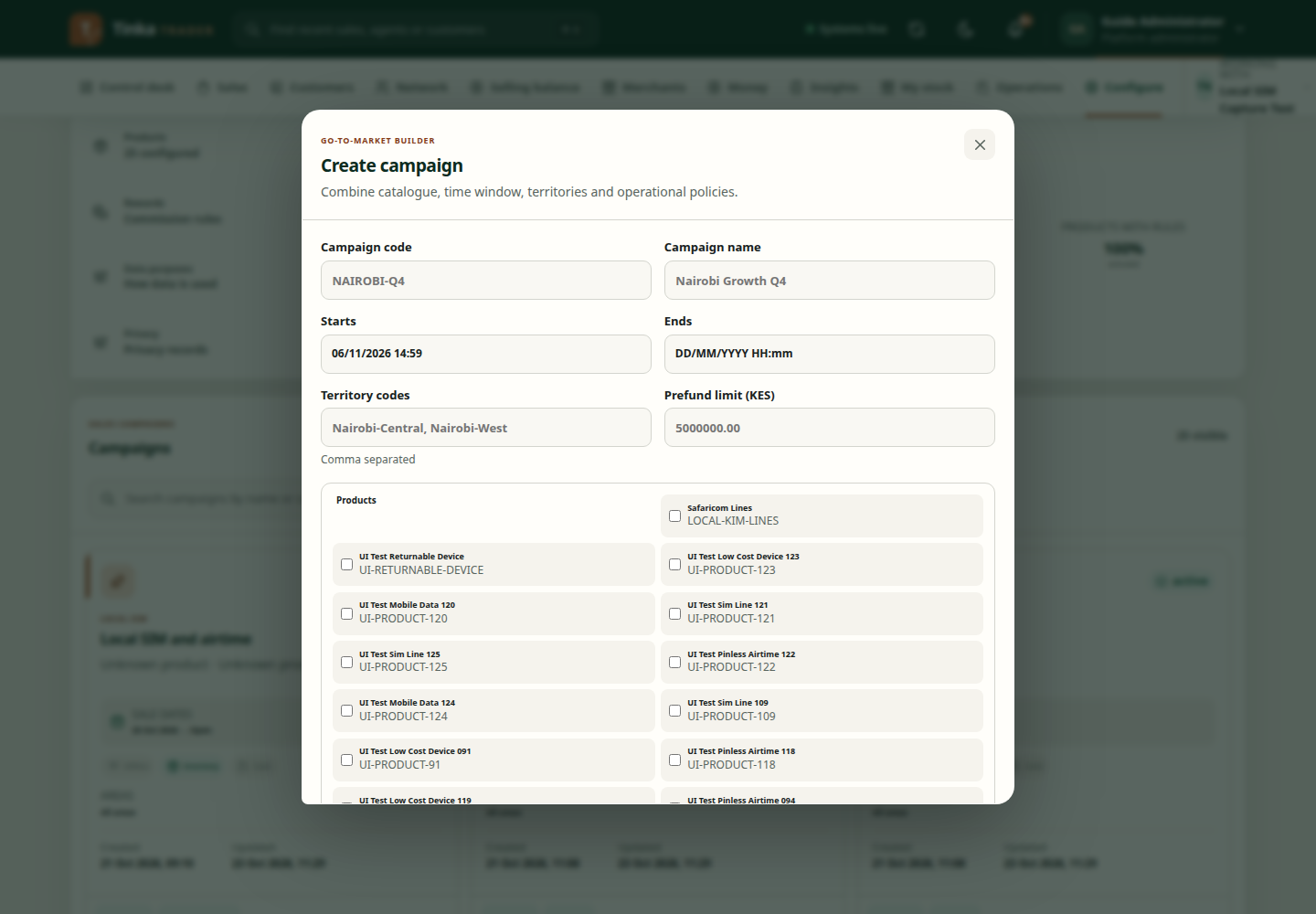
Create a campaign
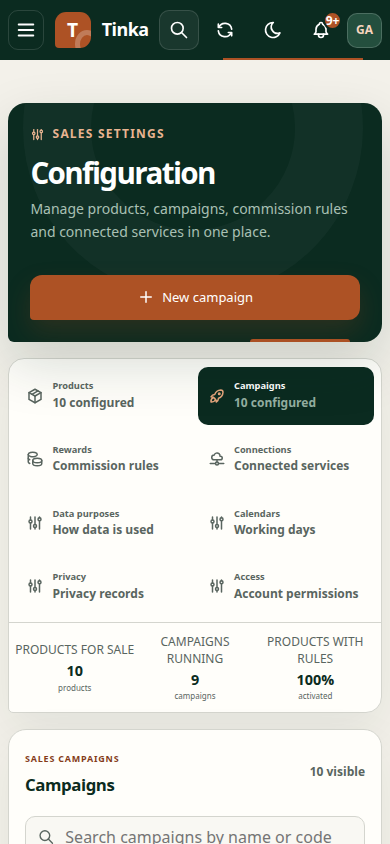
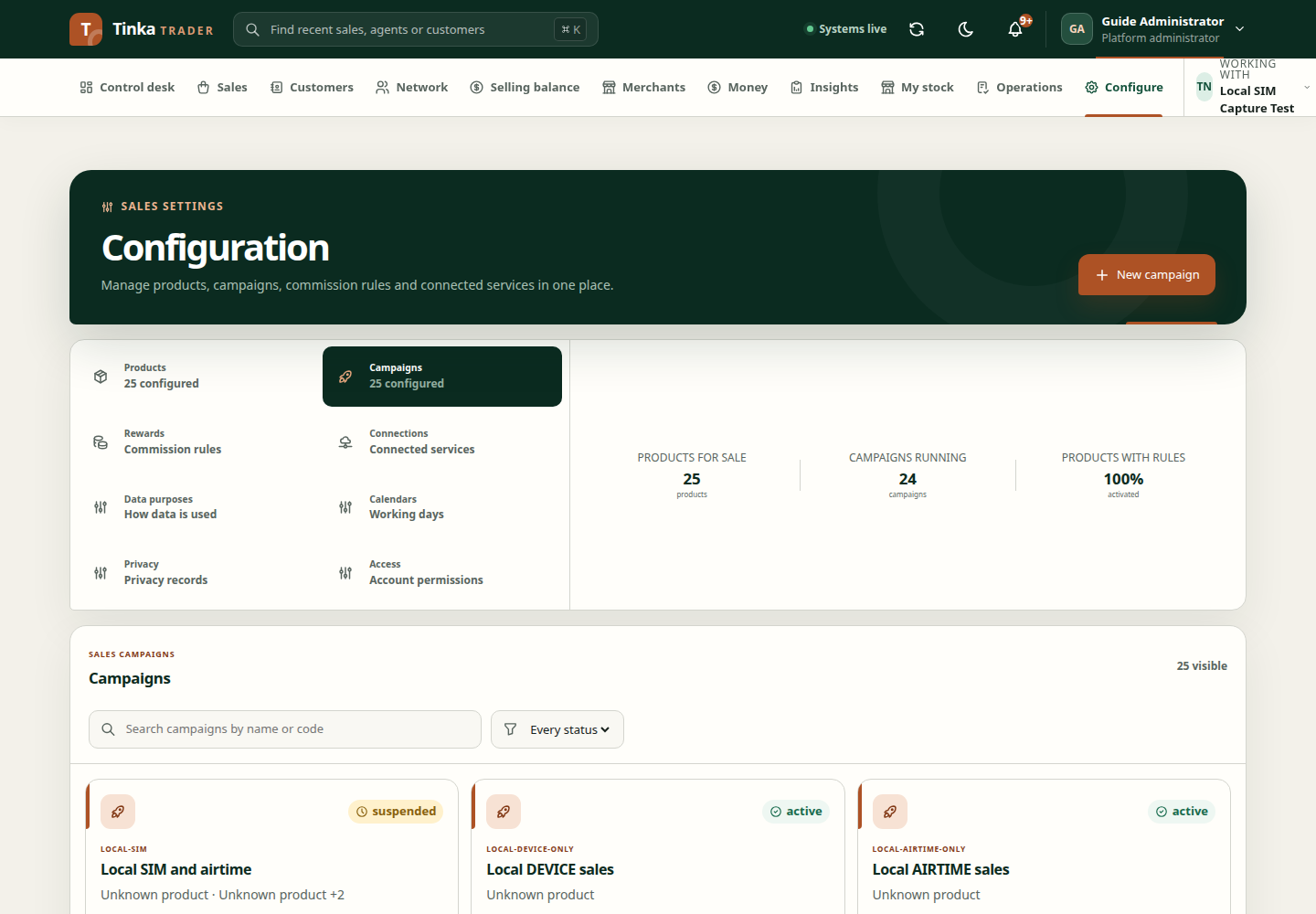
- Open Configure and the campaign workspace.
- Select Create campaign.
- Enter Campaign code and Campaign name.
- Choose at least one product.
- Set Starts and Ends where required. An end must follow the start.
- Enter Territory codes using the organisation's approved codes.
- Review the cash, inventory and offline capability controls offered by the form.
- Enter Prefund limit (KES) where applicable.
- Review the complete setup and save.
Dates use the device's local time in these inputs. A prefund limit is configuration, not proof that a merchant has already provided that money.
Launch, pause or resume
Use Launch campaign, Pause or Resume only when the corresponding business decision has been made. Check product availability, rule versions, assignments and funding prerequisites before launching.
An active campaign does not automatically make every agent eligible. An assignment still needs to cover the agent, products, territory and relevant period.
Edit safely
If the campaign has changed since the edit form opened, the client blocks a stale update. Close, refresh and review the newer version before applying your changes. Pay particular attention to effective dates and capability switches.
Investigate unavailable choices
A sale or import picker may show only active campaigns. Check the current campaign state and dates, then your read access. Do not create a duplicate campaign to work around a hidden or paused record.
Next: product rules and reward plans.
Create campaign — screen example