Business calendars
Business calendars define working days and daily cutoffs used by connected business rules. Open Configure → Calendars to inspect available versions or create a new version with the required permission.
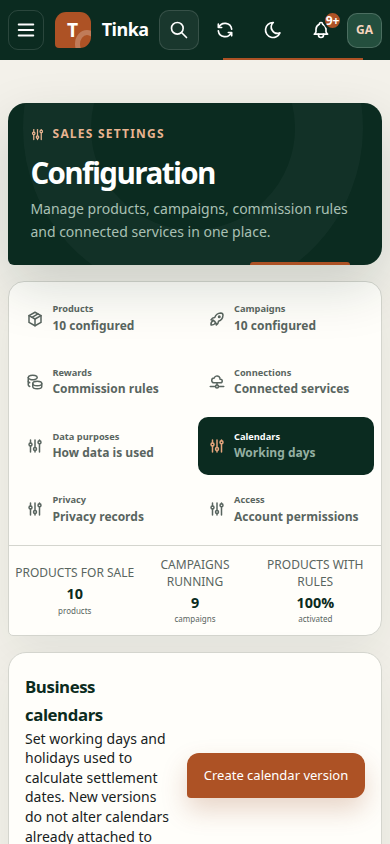
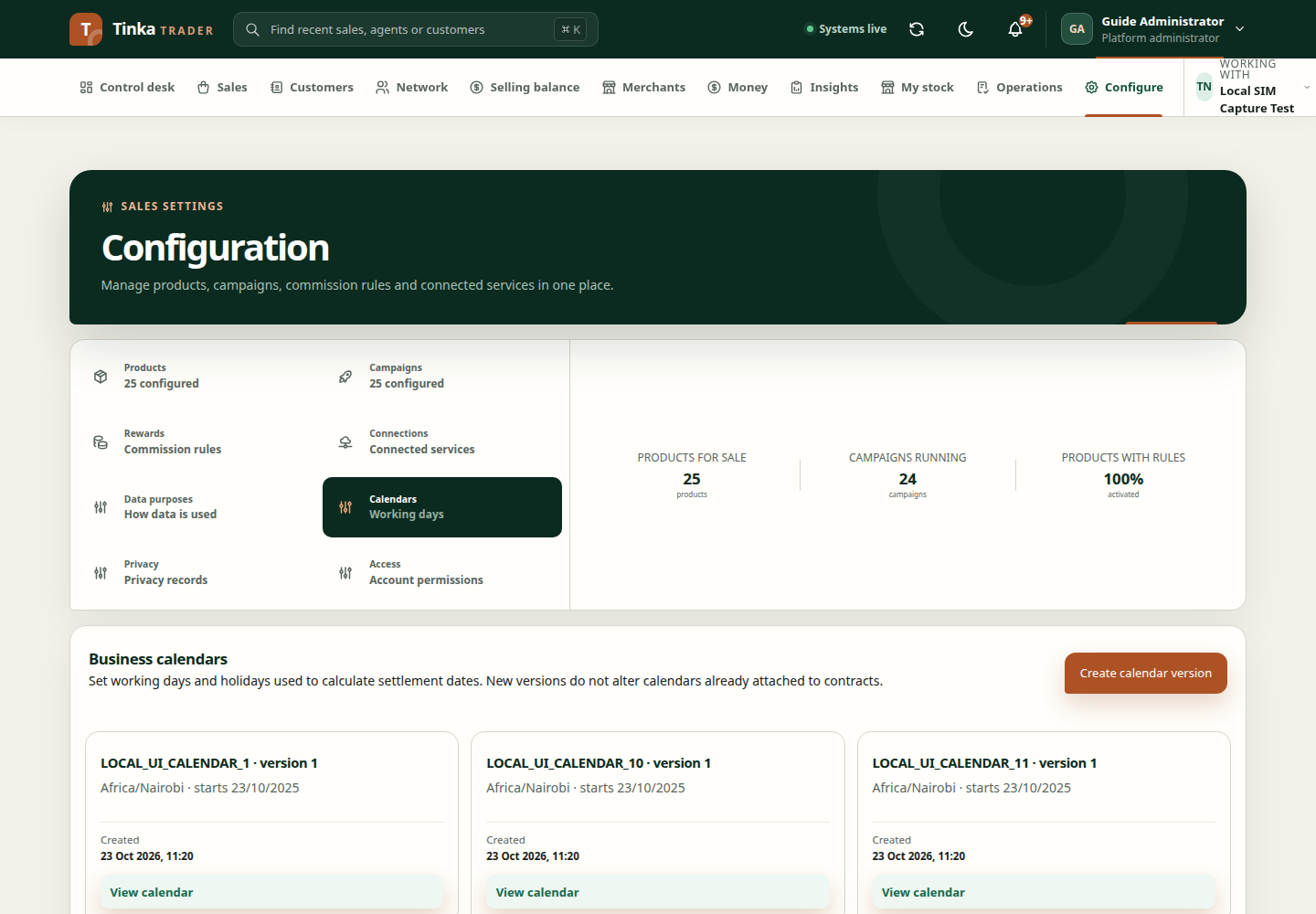
Create a calendar version
- Confirm the merchant and select the create action.
- Enter the agreed Calendar code. Use the same business code when creating a replacement version for that calendar.
- Choose the Timezone and Daily cutoff. These describe the business schedule, not your device's location.
- Select the weekend days and enter holidays, one date per line in
YYYY-MM-DDformat. - Set Effective from and an optional Effective to. The end date is exclusive: the version does not apply on that date.
- Review and save, then inspect the resulting version.
Changes to an existing calendar
Saved versions are immutable. Create a new version when the schedule changes. Existing contracts keep their selected calendar version; creating another version does not silently update those contracts.
Confirm effective dates with the business owner before using a new version. If the server rejects overlapping or incompatible settings, review the existing versions and the returned explanation.