Verify sale details in bulk
Bulk verification imports trusted facts for a campaign. Its captured rules decide the outcome for each sale. A live import can change qualification decisions and create commission allocations.
Before you start
You need permission to qualify sales and read campaigns. Upload permission and an active document processing purpose are needed to upload a new file. Reading products is also required to prepare a general template from campaign rules. Choose an active campaign and use verified source information. A checker without upload permission can use the original file already uploaded by a different user.
Prepare the file
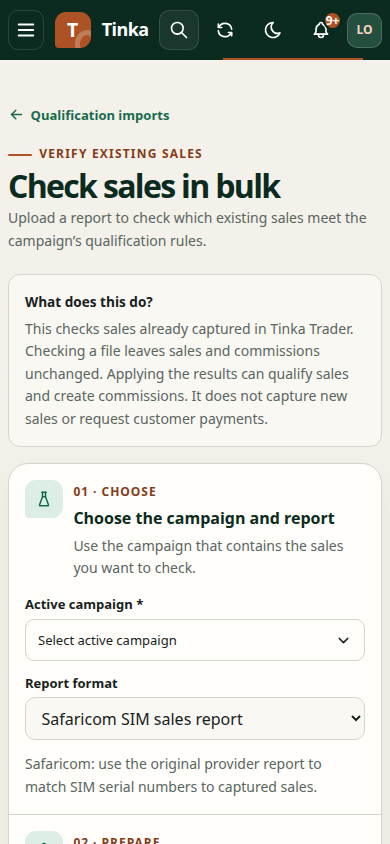
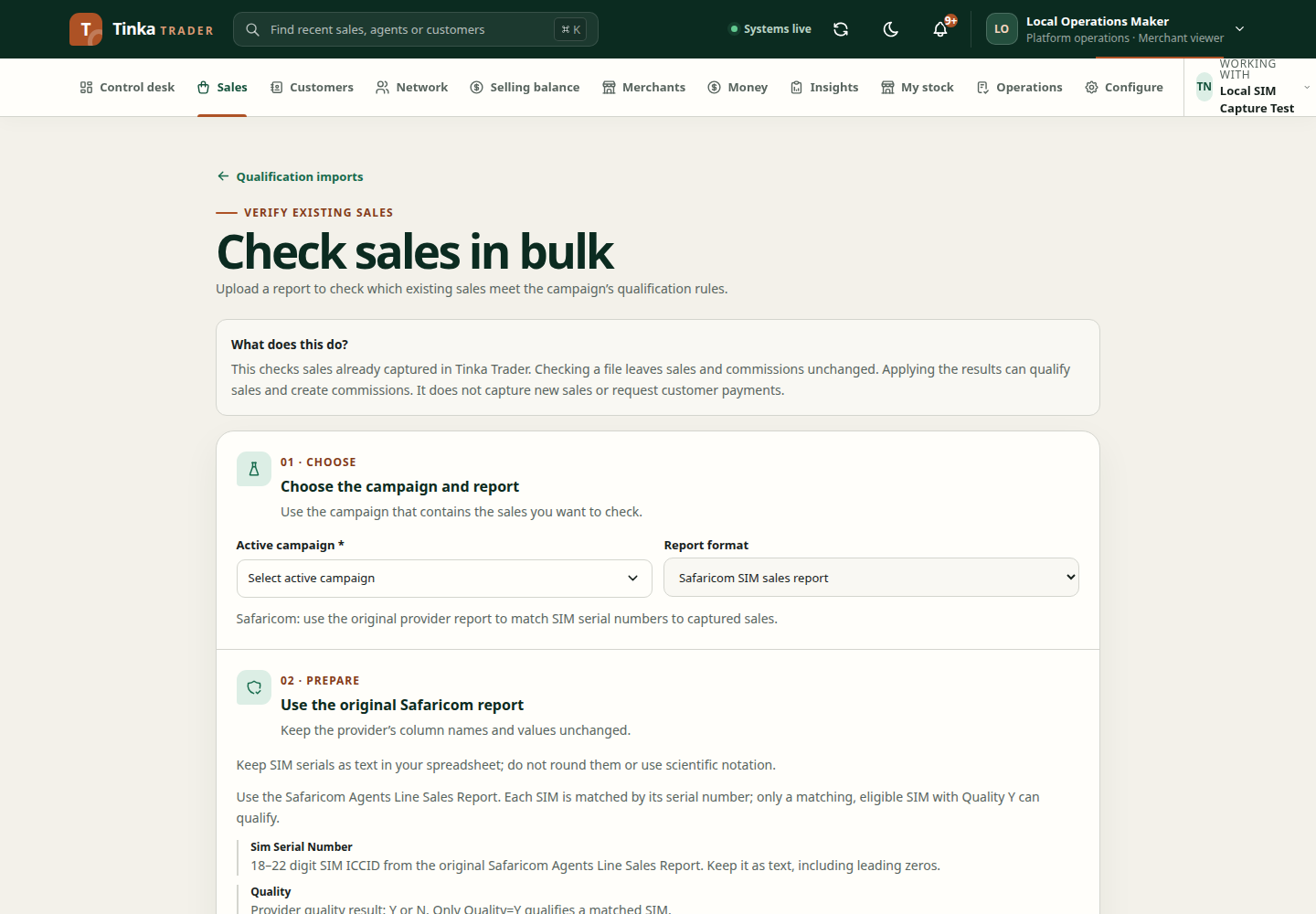
- Open Sales → Verification imports → New import, then Check sales in bulk.
- Choose Active campaign.
- Choose Report format and keep Check only enabled.
- For General verified sale details, download the CSV template. Column guide and advanced options contains the sale identifier choice: merchant sale reference or Tinka sale ID. Use one consistently.
- Follow the generated column types and stable fact references. Money is integer minor units; dates include a timezone. Older sales may need the columns from their captured rule revision, not today's active revision.
For Safaricom SIM sales report, use the original provider CSV or standard
Excel .xlsx file. Excel reports need one worksheet, at most 64 columns and
20,000 report rows. Store SIM serials and phone numbers as Text; formulas, macros
and rounded numeric ICCIDs are rejected. Keep the original provider values. It needs exact headers Sim Serial Number, Quality
and TM Date, once each. ICCIDs are 18–22 digit text; do not use scientific
notation. Quality is Y or N after trimming. TM Date must be a valid provider sale date. Supported forms include 2026-11-03T10:30, 2026-11-03T10:30:00, a supported date-only value or a timestamp with a timezone. Local dates use the configured merchant/campaign timezone. An invalid or future date needs correction; it cannot be replaced by the upload date.
For a captured SIM sale, the report must match its serial and campaign, with valid stock handover and reservation evidence. Package sales also need confirmed included airtime. Ordinary per-sale evaluation cannot replace the provider verification required for SIM commissions.
Sales made outside Trader
Safaricom reconciliation can recover a missing sale when the exact serial, stock custody, agent, campaign and funding evidence meet the configured rules. It does not treat every uploaded stock item as a sale. A missing or conflicting record remains Needs review, with a reason for Operations to investigate.
The optional MSISDN must be the sold line's full number. Masked Agent MSISDN is not the customer's number. Recovery can use the exact serial without an MSISDN; Trader leaves the unknown number blank. It does not invent one or send airtime again for a recovered provider sale.
If the agent has not acknowledged stock, ask them to confirm the actual receipt through My stock. A valid late acknowledgement can queue another check, provided the original dispatch predates the provider sale. It does not reset the 32-day eligibility deadline or make reported-sold items available for another sale. Quality N does not earn a qualified-line commission.
Validate before applying
Under Upload and check your report, choose Upload report (or Use an already uploaded report). Select the approved Document processing purpose and upload the Completed CSV or Excel report for Safaricom, or the CSV report for general verification. The file belongs to the selected campaign; the uploader is recorded separately. No active purpose means an administrator must configure report-file permissions first—there is no automatic default that bypasses this requirement.
Wait for integrity verification and scanning to finish. For Safaricom, enter
Provider delivery reference; the uploaded file's SHA-256 is also required,
including for Check only. Fresh uploads supply the checksum automatically. Selecting a checked report
reuses its stored checksum; manual entry remains an advanced fallback when
metadata is unavailable. The original Excel bytes remain the evidence and retain
their .xlsx download format. These provenance fields
are not sent for a general report. Do not label a generated test worksheet as a
verified provider delivery.
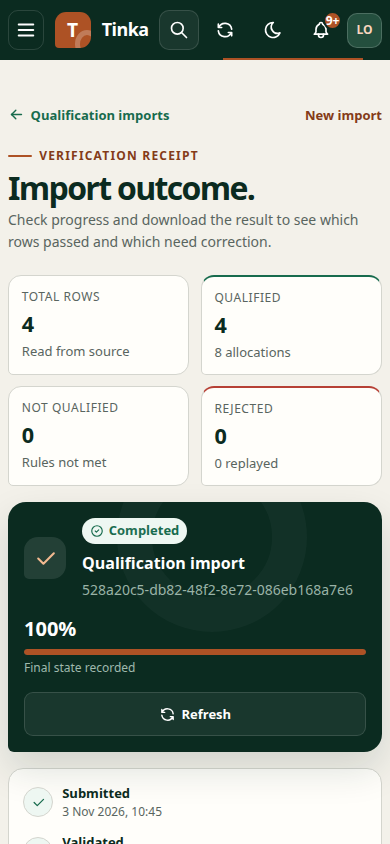
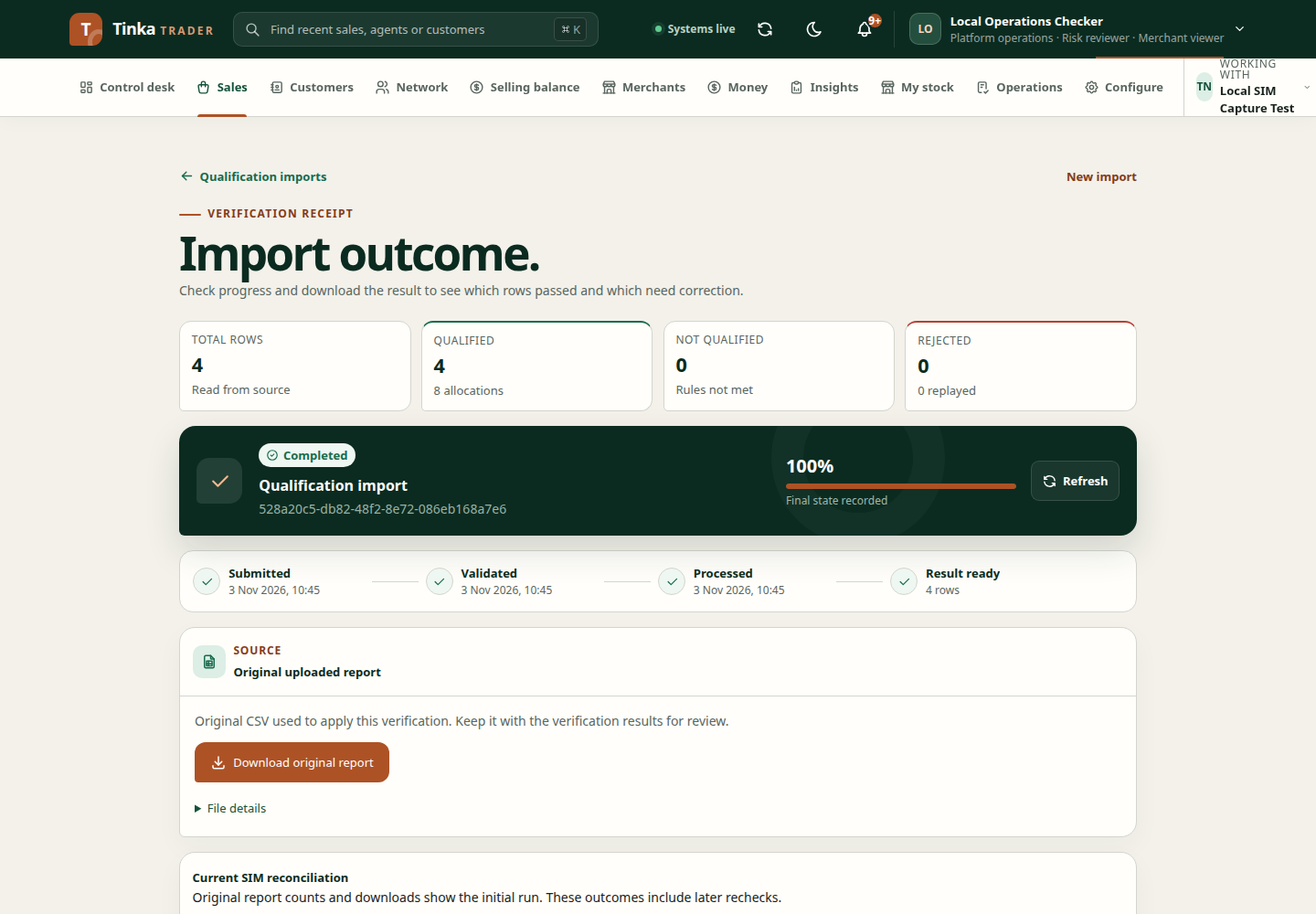
Select Check file and inspect row outcomes. A file being accepted or HTTP 202 is not proof that rows qualified. Check only records the import and its results but changes no sale qualification and creates no commissions.
Correct rejected rows using the reported reasons. Check identifiers, campaign membership, column types and required facts. Keep references stable when correcting the same source information.
Only after reviewing checked results should you disable Check only and select Review and apply. A live Safaricom import requires an independent risk or platform-admin checker who did not upload the file, plus a recent sign-in. Share the original file ID, checksum and provider delivery reference with that checker; do not upload a second copy to bypass the separation. Confirmation after sign-in is explicit; the security check never applies a report automatically. Live processing can affect sales and commissions.
After submission
Follow the import's status and individual results. If processing is interrupted, inspect the existing import before uploading again. Share the import reference and failed row references with the responsible reviewer when you cannot resolve them.
Reuse a report safely
Uploading the same content again for the same merchant, campaign, schema and Check only setting reopens the existing import. Renaming the file does not start another verification.
After a successful check, review the result and share the checked import with an independent authorised checker. They reuse its original source, disable Check only, then Review and apply after the security check. The maker cannot apply their own Safaricom file.
For an already applied report, use Recheck row after correcting the reported problem. Current SIM reconciliation shows later outcomes. Original import counts and downloaded results describe the initial run and can differ from those current row outcomes. A queued recheck needs the background worker to finish; it is not an immediate commission confirmation.
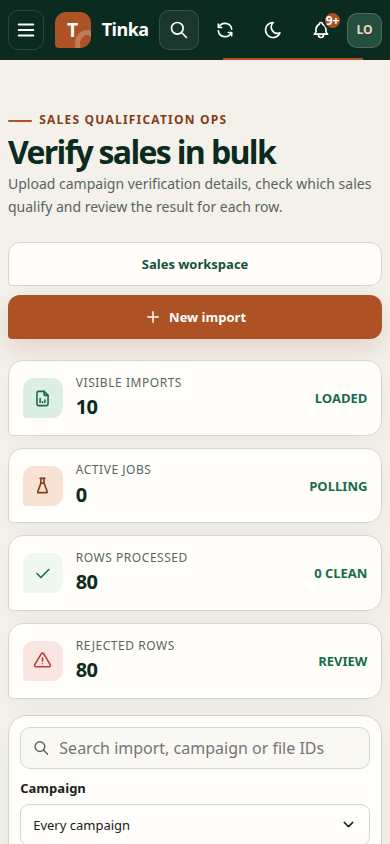
Verification import history — screen example
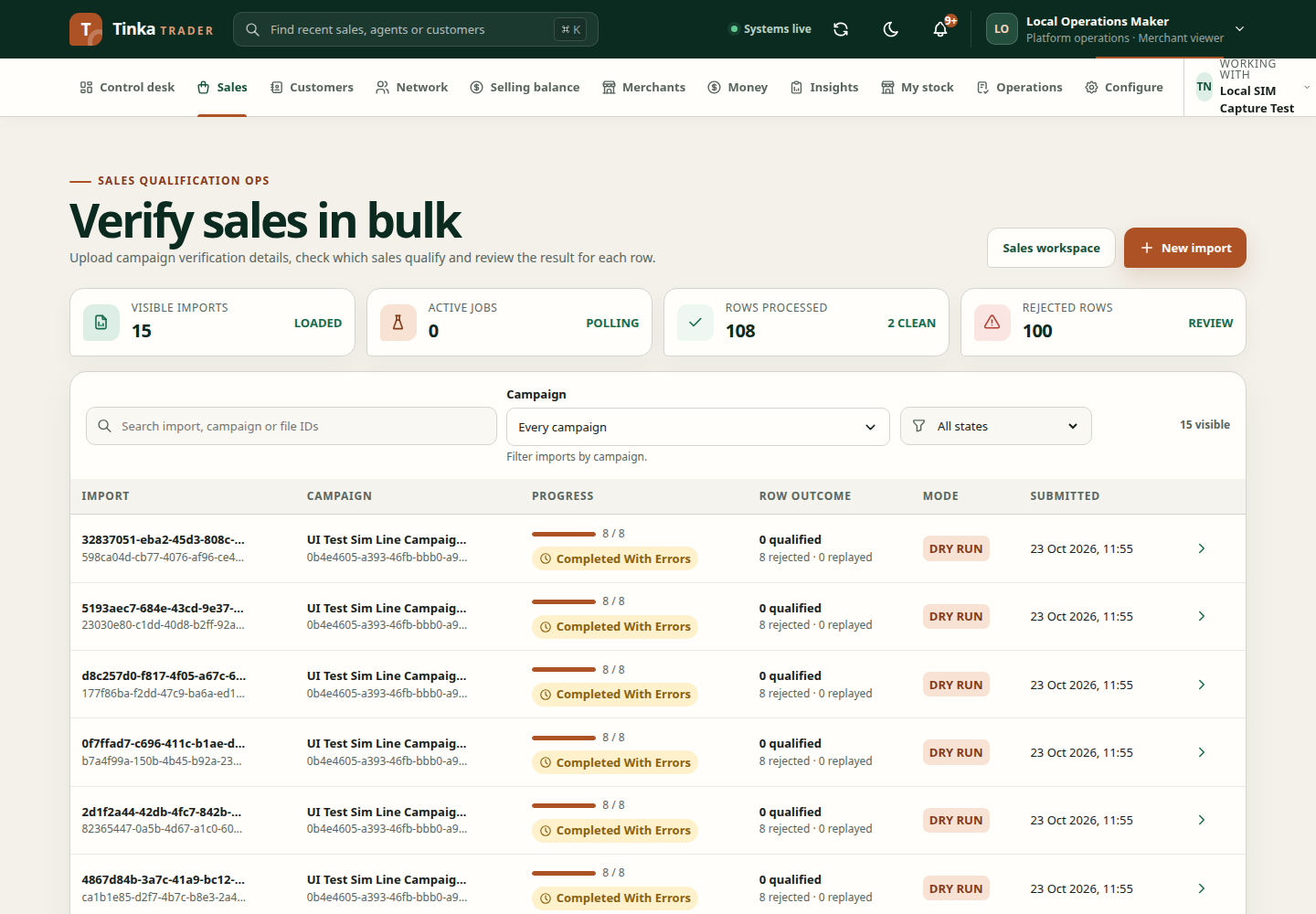
Verification results and next actions — screen example