Install the app and manage updates
Tinka Trader can be installed as a web application on supported browsers and devices. Installation offers convenient access; it does not make every operation available offline.

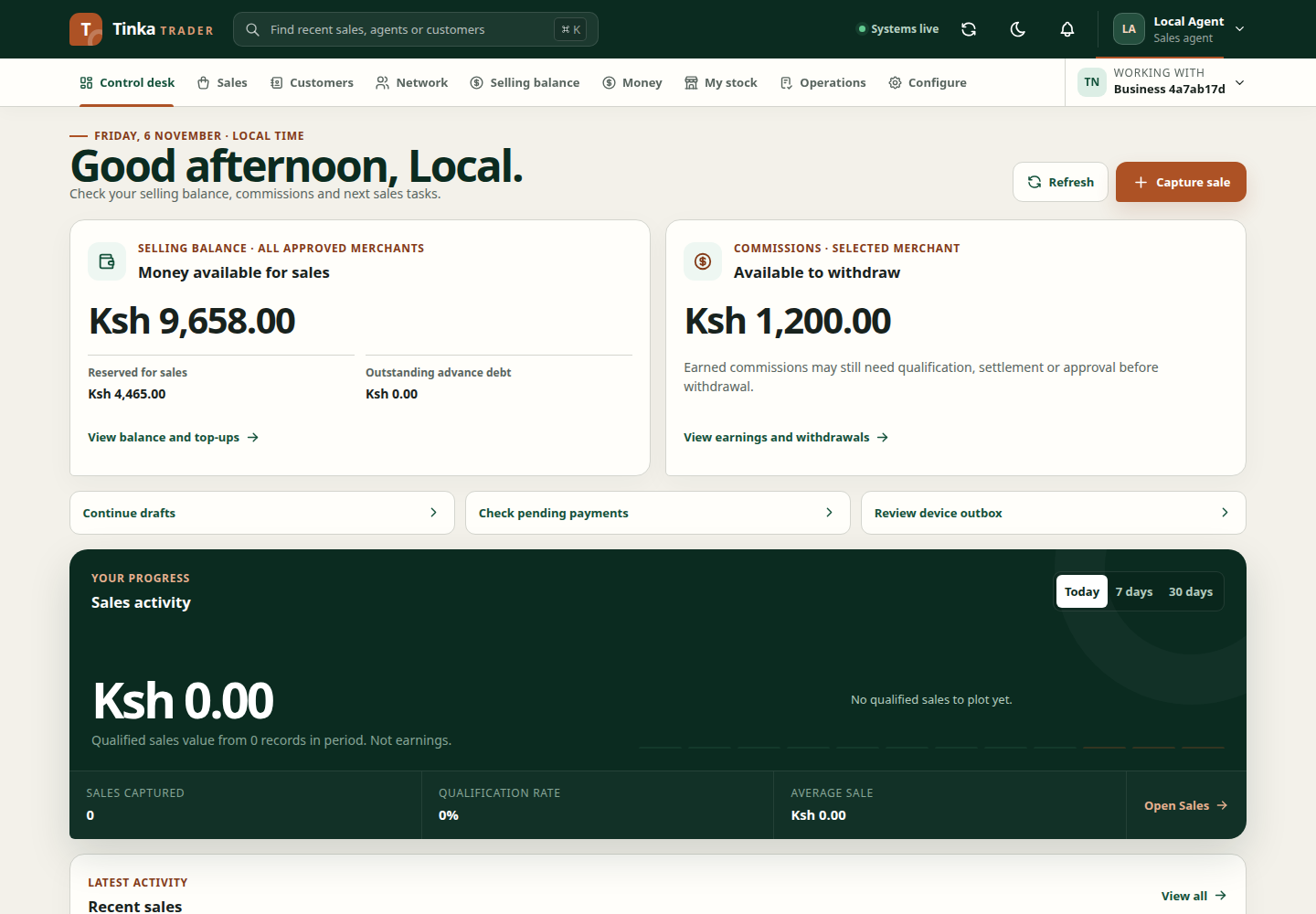
Install
- Open the live application in a supported browser and sign in.
- Open your avatar's account menu and select Install Tinka Trader. On iOS Safari, select Add to Home Screen.
- Follow the browser's confirmation. If no install prompt is available, Trader shows instructions for installing through your browser menu. Closing these instructions leaves the installation option available in the account menu.
- Launch the installed application and confirm your account and operating merchant.
Some browsers use their own Install app or Add to Home Screen command. If no install action is available, you can continue using the browser. Availability depends on browser support and how the application is hosted.
Work with a weak connection
Read the connection indicator and the specific action's message. Supported sale drafts or queued submissions may work while other actions require a connection. Financial requests, uploads and approvals should not be assumed to queue offline.
Before leaving a reliable connection, load the correct merchant and required reference information. After reconnecting, follow offline sale recovery and confirm the outbox is resolved.
Apply an update safely
When an update prompt appears, finish or safely save current work before reloading. The application protects in-progress forms and uploads from inappropriate reloads, but you should still confirm what has been saved or queued.
Do not clear site data or uninstall as a first response to an update issue. Unsynchronised drafts may exist only on that device. Ask support for recovery instructions if an update and queued work appear to conflict.
Shared devices
Use your own account, sign out through the application and wait for confirmation. Installed apps use browser storage too; an app icon is not a separate permission boundary. See account access.