Process bulk sales and top-ups
Bulk wallet work lets authorised users validate and process several wallet-funded sales or agent top-ups from one CSV or Excel file. Each row still creates and tracks its own result.
This is different from bulk sale verification. Bulk wallet sales create sales that use selling balance. Bulk verification adds trusted qualification facts to sales that already exist.
Before you start
You need Bulk wallet work access and the correct merchant selected.
- Bulk sales also require permission to create and submit sales. You can process only sales allowed by your merchant and agent authority.
- Bulk top-ups are for authorised platform operators with wallet funding authority.
- Uploading files requires file access and an approved document-processing purpose.
- Review, submission, cancellation and dispatch can require a recent security check.
Top-up approval confirms real money. A receipt image, spreadsheet row or typed reference alone does not prove that funds arrived.
Download the right template
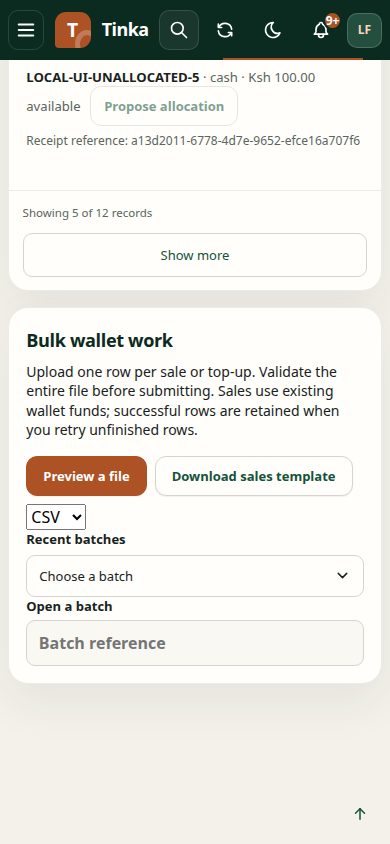
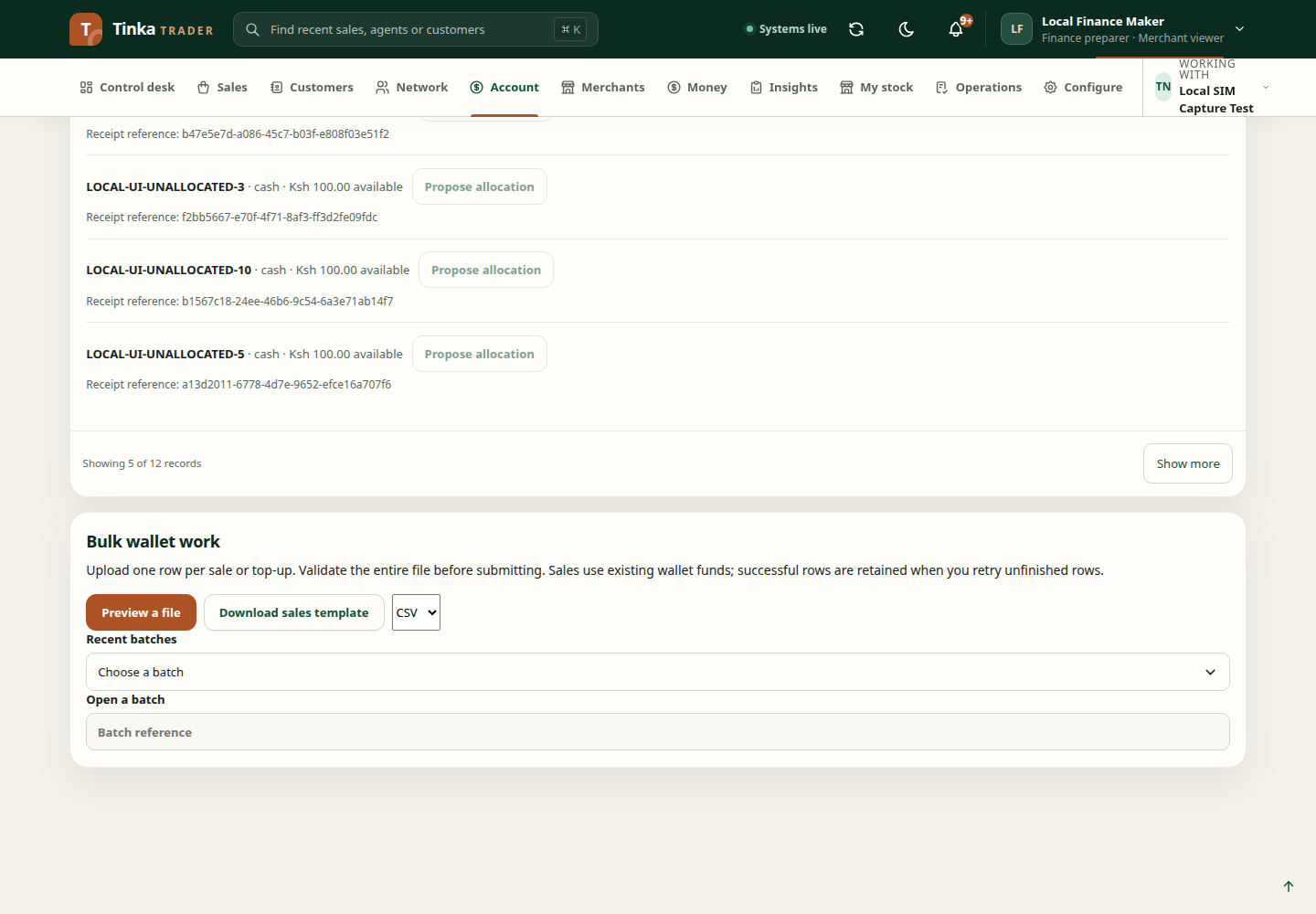
- Open Account → Bulk wallet work.
- Choose whether the file contains Wallet sales or Agent top-ups.
- Choose CSV or Excel.
- Select Download sales template or Download funding template.
- Replace the example rows without renaming, removing or adding columns.
Always download a current template. Do not reuse a qualification-import template or create headers from memory.
Prepare the file
Use one row for each sale or top-up.
- Enter money as integer minor units. For example, KES 100.00 is
10000. - Use ISO date and time values where the template requests a date.
- Separate multiple evidence or stock identifiers with
|. - Enter product application fields as the JSON object required by the product rule.
- Keep phone numbers and references as text so spreadsheet software does not remove leading zeroes or change long values.
- Use one plain-values sheet for Excel files. Do not use formulas, macros or external links.
The configured policy controls the final limits. The current default permits up to 1,000 rows and a 5 MiB file.
Validate without creating records
- Select Preview a file.
- Confirm Wallet sales or Agent top-ups under File type.
- Upload one matching CSV or Excel file.
- Wait until the file has passed its security scan.
- Submit the preview.
Preview checks the whole file with the real sale or funding rules. It does not create lasting sales, wallet reservations or provider instructions.
Open the new batch and read every file error and row state. One invalid row blocks submission of that batch. Correct the source file and create a new preview; do not edit a reviewed batch.
Submit and review
Only the person who created a fully valid preview can select Submit reviewed batch.
- A funding batch creates separate pending top-up requests. It always requires an independent reviewer to verify the actual funds.
- A sales batch follows the configured bulk checker policy.
The reviewer should compare the batch, source file, merchant, totals, receiving account and supporting records. For a funding batch, select the confirmation that actual funds were verified only after checking every top-up. Enter a useful review reason, then select Approve and send unfinished rows.
The maker must not approve their own work where independent review is required.
Follow every row
Open Recent batches or enter a known Batch reference. Filter by Row status and use Download row results for a complete CSV result.
Rows run in file order, but each row has its own transaction and outcome. A sales row links to its sale. A funding row shows its wallet request reference. Dispatch rechecks permission, current prices, product eligibility, stock and available balance, so a row can fail after a valid preview.
If processing stops partway through, retry the existing batch's unfinished rows. Confirmed successful rows are retained and are not sent again. If current prices require a new quote, correct the file and create a new preview.
Cancel safely
Use Cancel unfinished rows only after checking the batch state. Cancellation preserves completed rows and stops eligible remaining work. It does not reverse a completed sale or an applied top-up.
If the outcome is unclear, keep the batch and row references and ask an authorised reviewer or support team to inspect them before retrying elsewhere.